Containerization_and_DevOpsLab
Experiment 4: Docker Essentials
Topics Covered: Dockerfile · .dockerignore · Tagging · Publishing
Part 1: Containerizing Applications with Dockerfile
Step 1: Create a Simple Application
Directory Setup:
mkdir my-flask-app
cd my-flask-app
app.py:
from flask import Flask
app = Flask(__name__)

@app.route('/')
def hello():
    return "Hello from Docker!"

@app.route('/health')
def health():
    return "OK"

if __name__ == '__main__':
    app.run(host='0.0.0.0', port=5000)
requirements.txt:
Flask==2.3.3
Step 2: Create Dockerfile
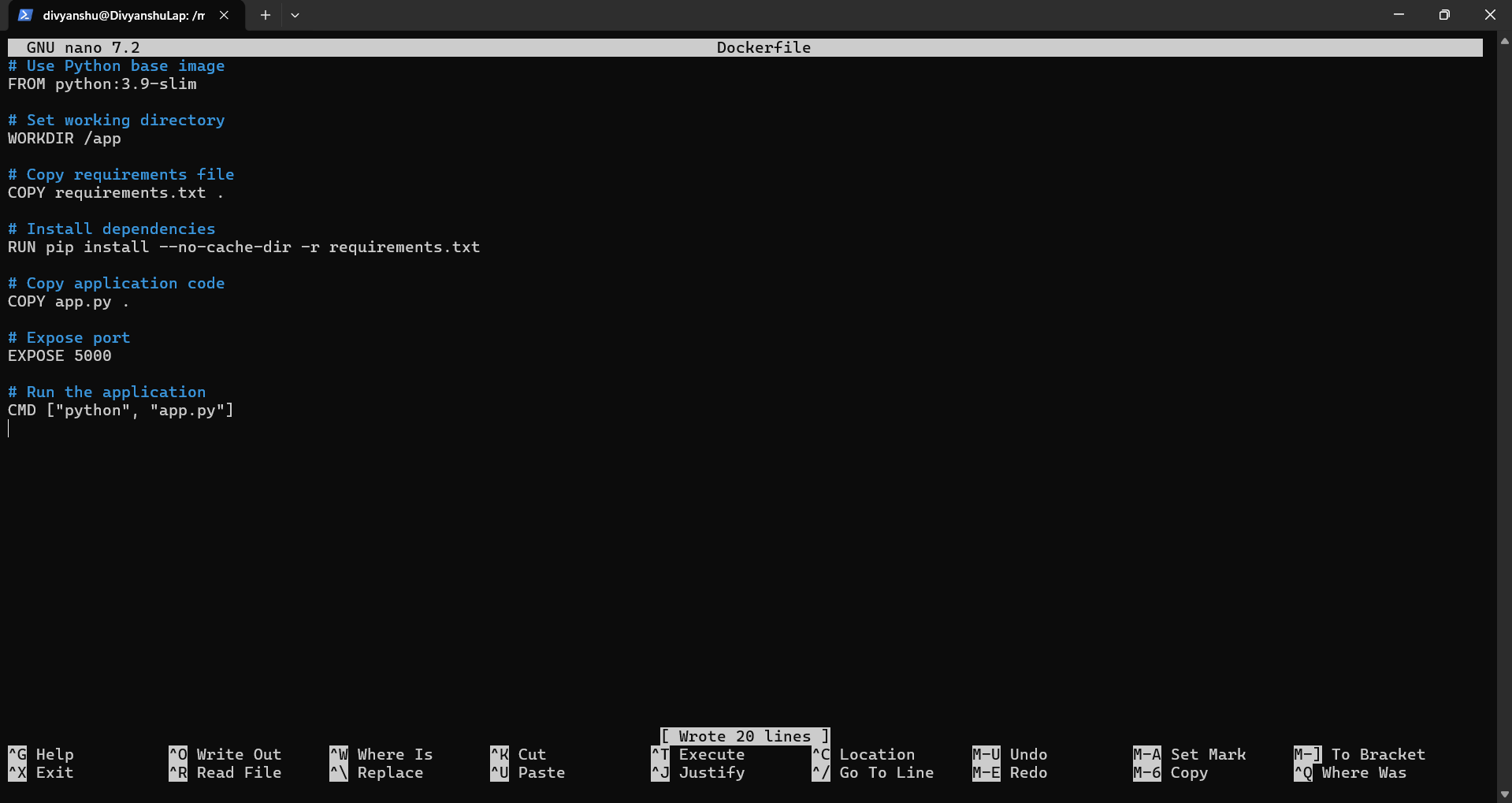
Dockerfile:
# Use Python base image
FROM python:3.9-slim

# Set working directory
WORKDIR /app

# Copy requirements file
COPY requirements.txt .

# Install dependencies
RUN pip install --no-cache-dir -r requirements.txt

# Copy application code
COPY app.py .

# Expose port
EXPOSE 5000

# Run the application
CMD ["python", "app.py"]
📸 Screenshot – Dockerfile and project structure:
Part 2: Using .dockerignore
Step 1: Create .dockerignore File
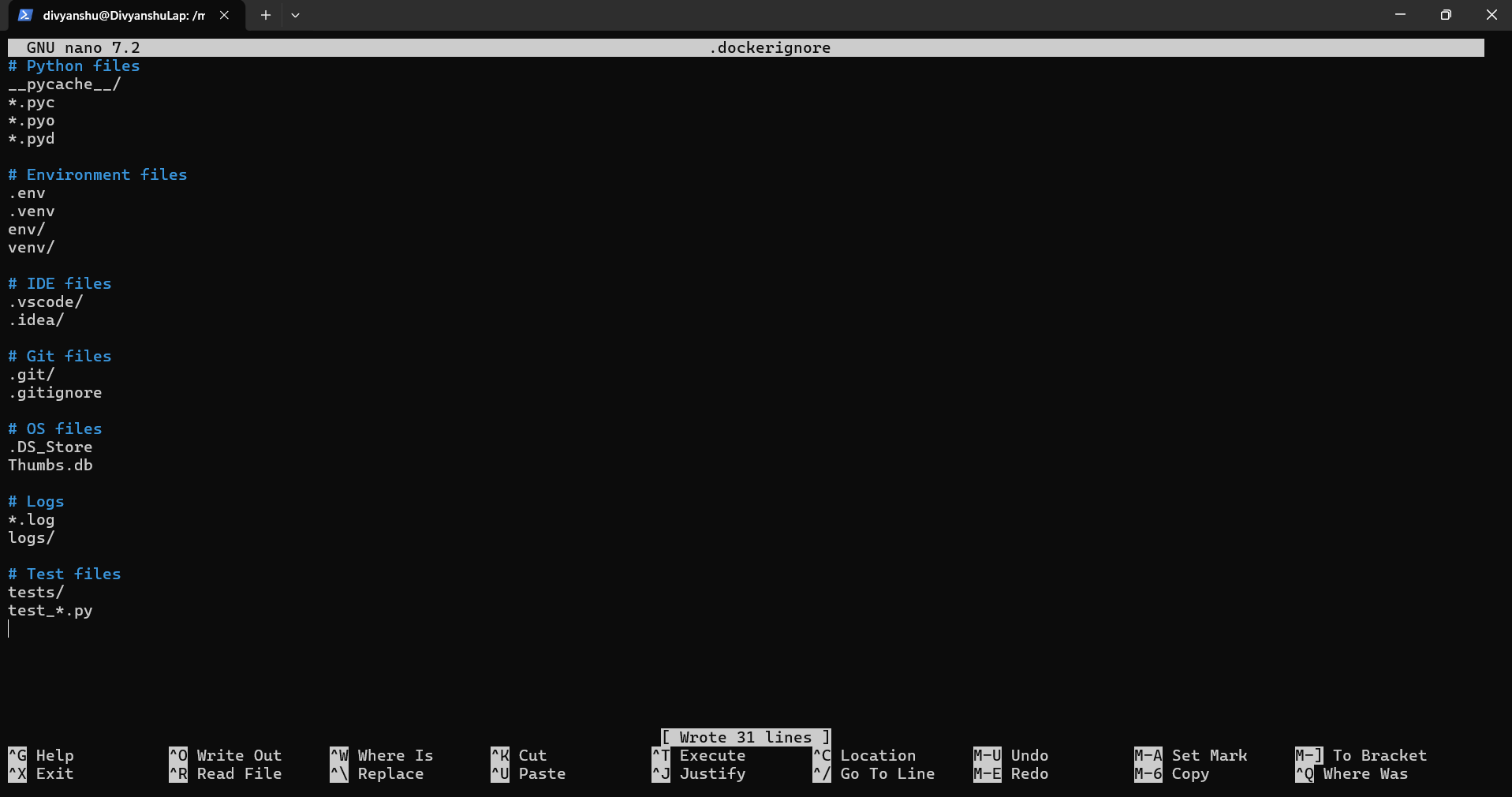
.dockerignore:
# Python files
__pycache__/
*.pyc
*.pyo
*.pyd

# Environment files
.env
.venv
env/
venv/

# IDE files
.vscode/
.idea/

# Git files
.git/
.gitignore

# OS files
.DS_Store
Thumbs.db

# Logs
*.log
logs/

# Test files
tests/
test_*.py
Step 2: Why .dockerignore is Important
- Prevents unnecessary files from being copied into the image
- Reduces image size
- Improves build speed
- Increases security
📸 Screenshot – .dockerignore file created:
Part 3: Building Docker Images
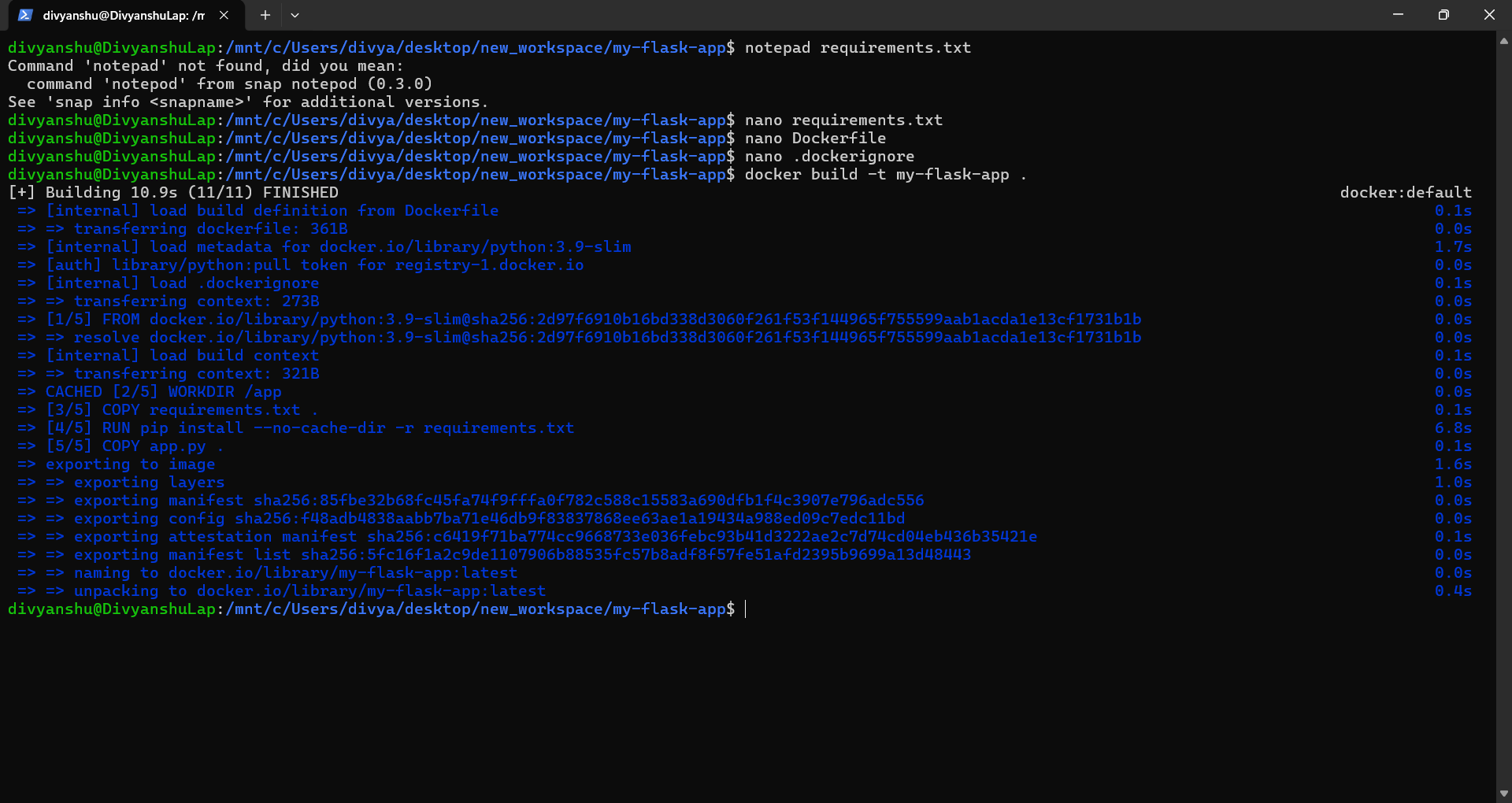
Step 1: Basic Build Command
# Build image from Dockerfile
docker build -t my-flask-app .

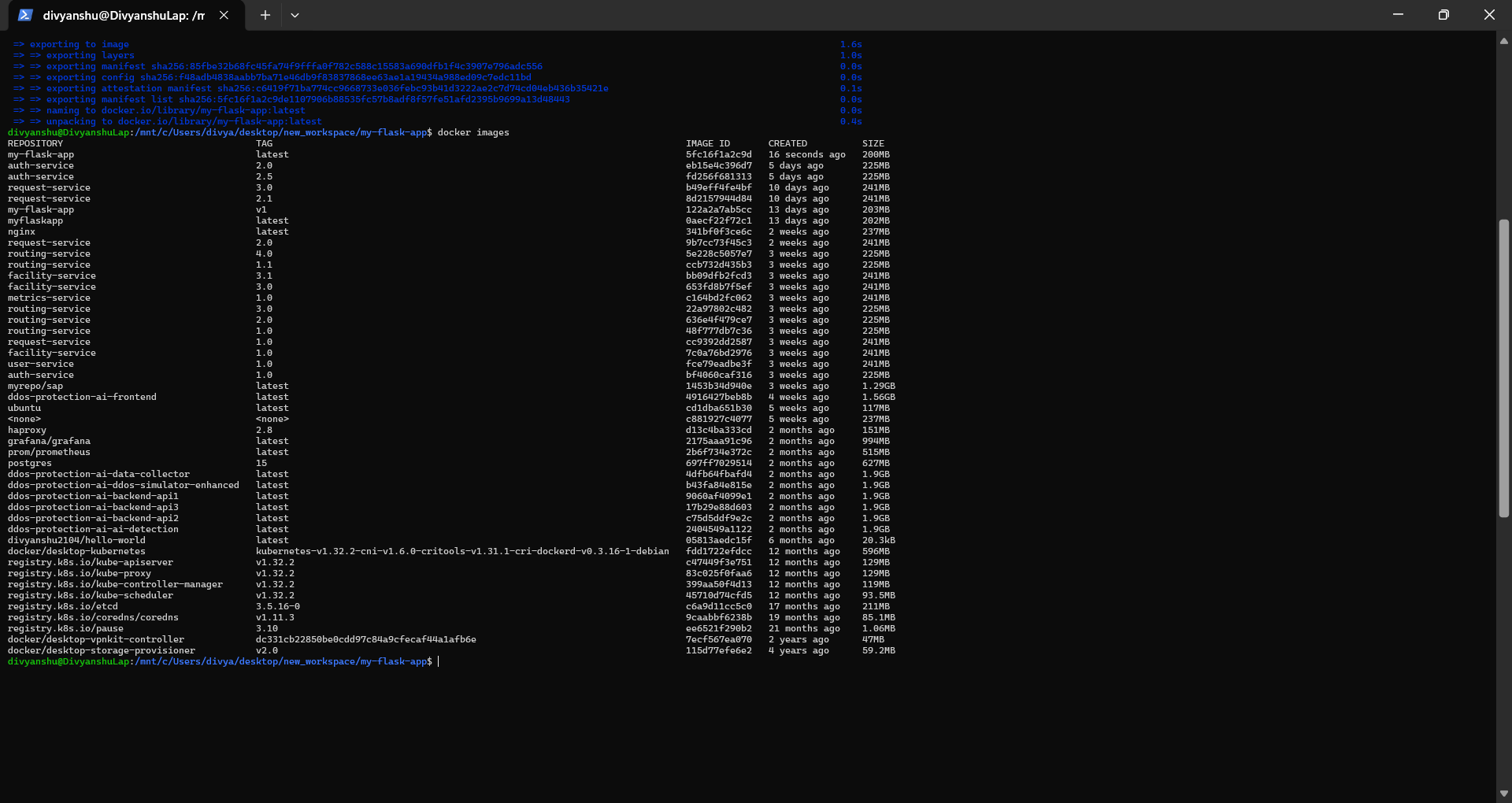
# Check built images
docker images
📸 Screenshot – docker build output:
📸 Screenshot – docker images listing:
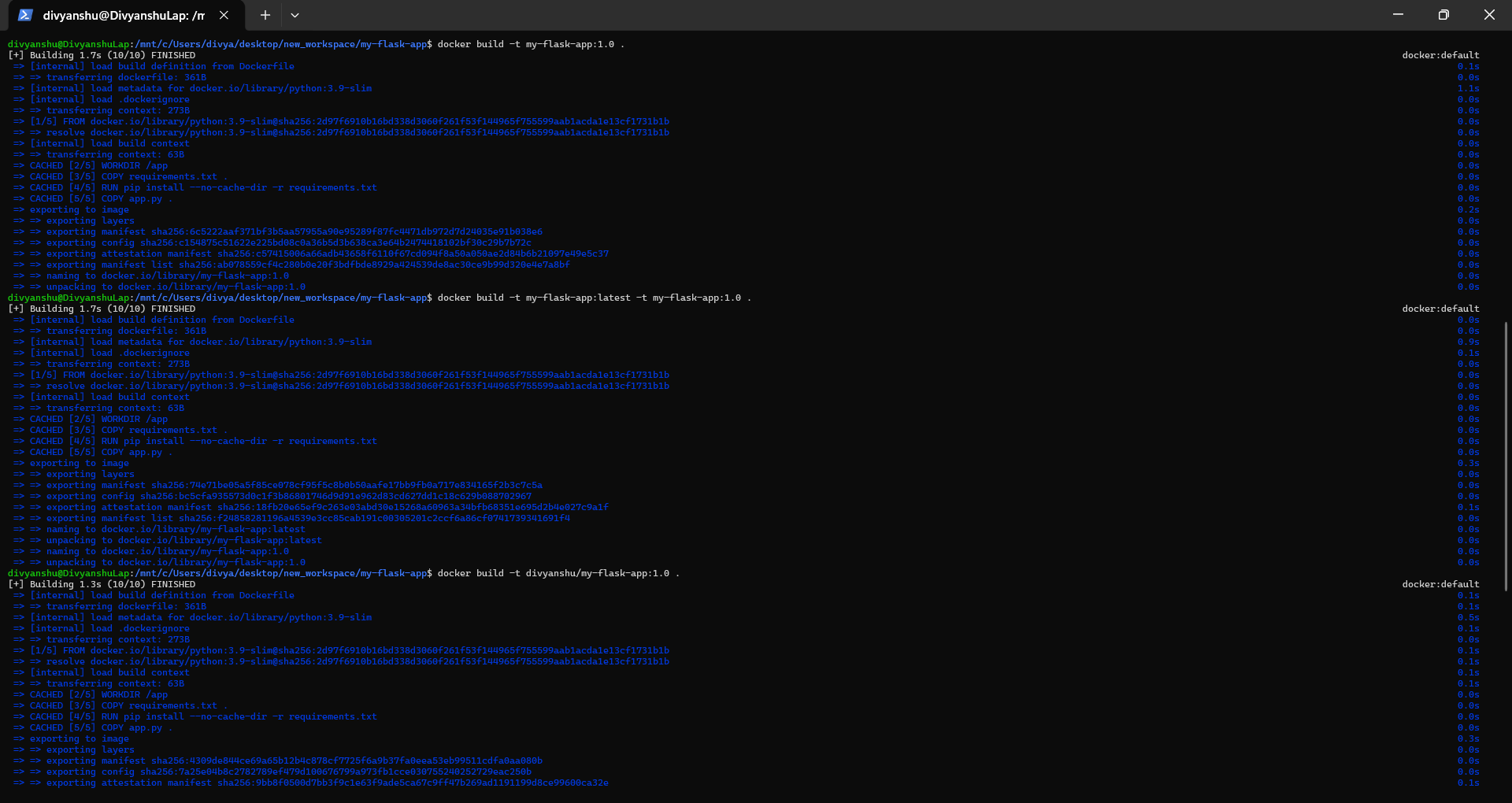
Step 2: Tagging Images
# Tag with version number
docker build -t my-flask-app:1.0 .

# Tag with multiple tags
docker build -t my-flask-app:latest -t my-flask-app:1.0 .

# Tag with custom registry
docker build -t username/my-flask-app:1.0 .

# Tag existing image
docker tag my-flask-app:latest my-flask-app:v1.0
📸 Screenshot – image tagging commands:
Step 3: View Image Details
# List all images
docker images

# Show image history
docker history my-flask-app

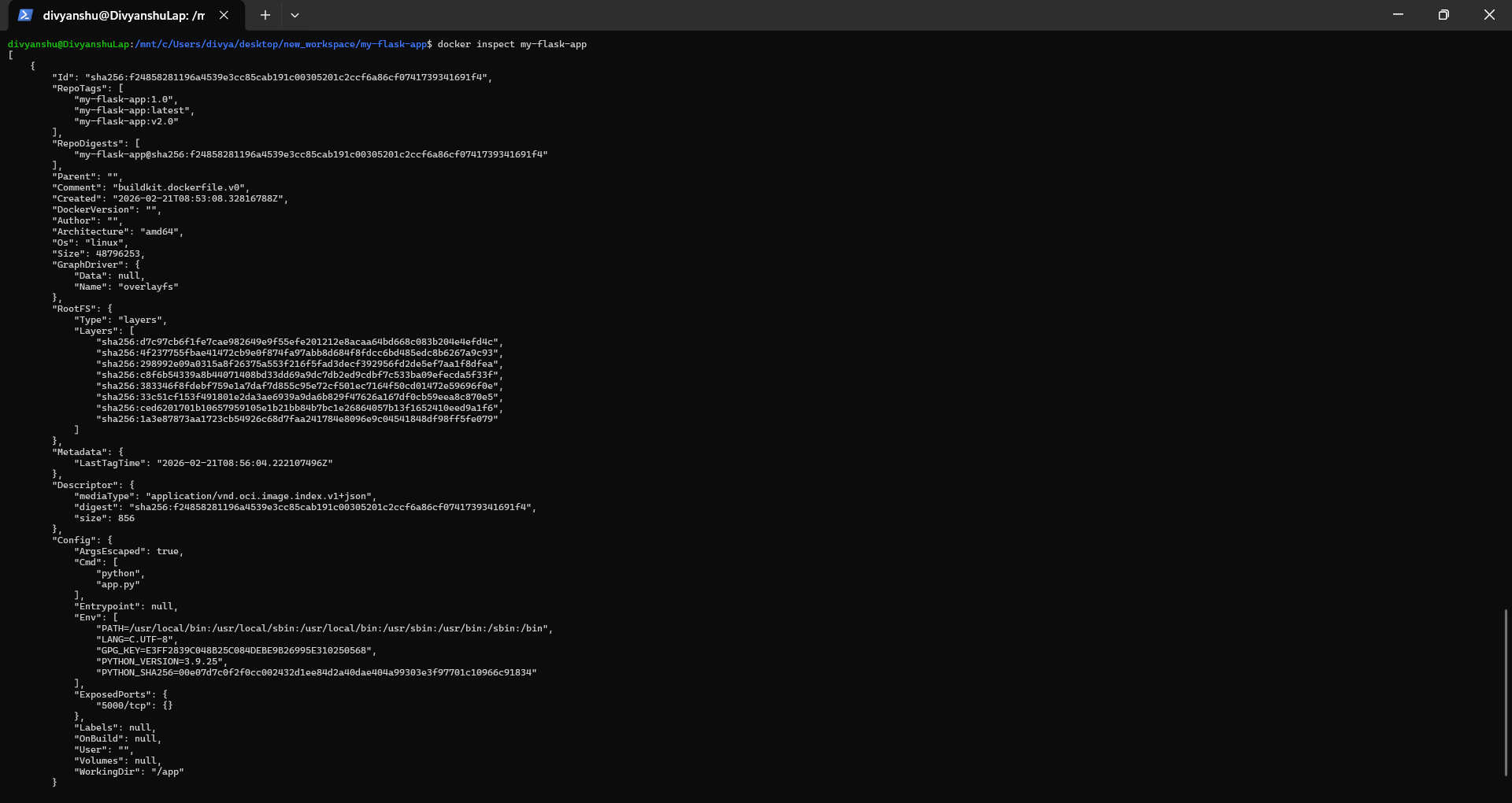
# Inspect image details
docker inspect my-flask-app
📸 Screenshot – docker inspect output:
Part 4: Running Containers
Step 1: Run Container
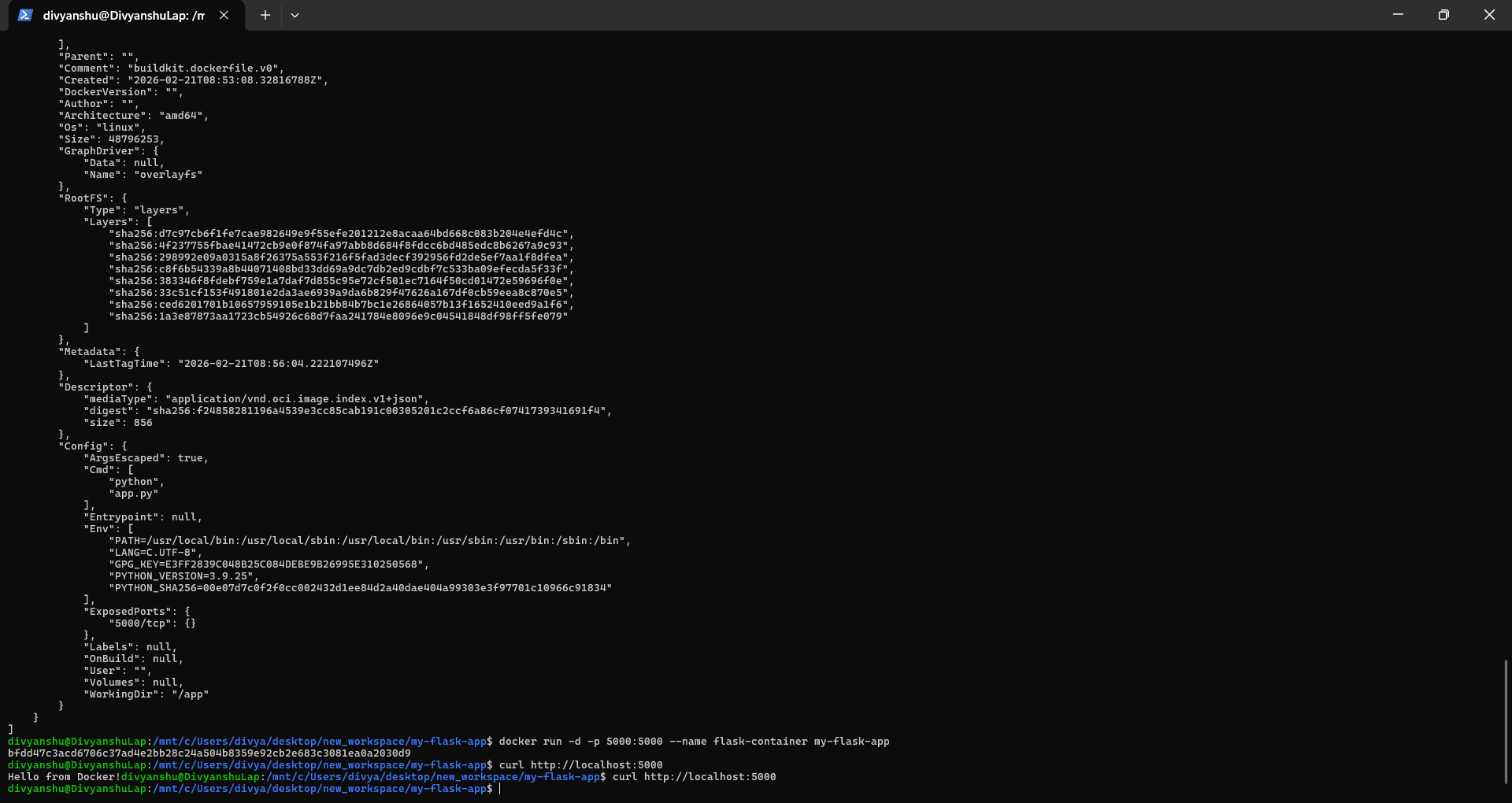
# Run container with port mapping
docker run -d -p 5000:5000 --name flask-container my-flask-app

# Test the application
curl http://localhost:5000

# View running containers
docker ps

# View container logs
docker logs flask-container
📸 Screenshot – container running and curl output:
Step 2: Manage Containers
# Stop container
docker stop flask-container

# Start stopped container
docker start flask-container

# Remove container
docker rm flask-container

# Remove container forcefully
docker rm -f flask-container
📸 Screenshot – container stop/start/remove commands:

Part 5: Multi-stage Builds
Why Multi-stage Builds?
- Smaller final image size
- Better security (removes build tools from final image)
- Separate build and runtime environments
Step 2: Multi-stage Dockerfile
Dockerfile.multistage:
# STAGE 1: Builder stage
FROM python:3.9-slim AS builder

WORKDIR /app

COPY requirements.txt .

RUN python -m venv /opt/venv
ENV PATH="/opt/venv/bin:$PATH"
RUN pip install --no-cache-dir -r requirements.txt

# STAGE 2: Runtime stage
FROM python:3.9-slim

WORKDIR /app

COPY --from=builder /opt/venv /opt/venv
ENV PATH="/opt/venv/bin:$PATH"

COPY app.py .

RUN useradd -m -u 1000 appuser
USER appuser

EXPOSE 5000

CMD ["python", "app.py"]
Step 3: Build and Compare
# Build regular image
docker build -t flask-regular .

# Build multi-stage image
docker build -f Dockerfile.multistage -t flask-multistage .

# Compare sizes
docker images | grep flask-
Expected output:
flask-regular       ~250MB
flask-multistage    ~150MB  (40% smaller!)
📸 Screenshot – multi-stage build output:
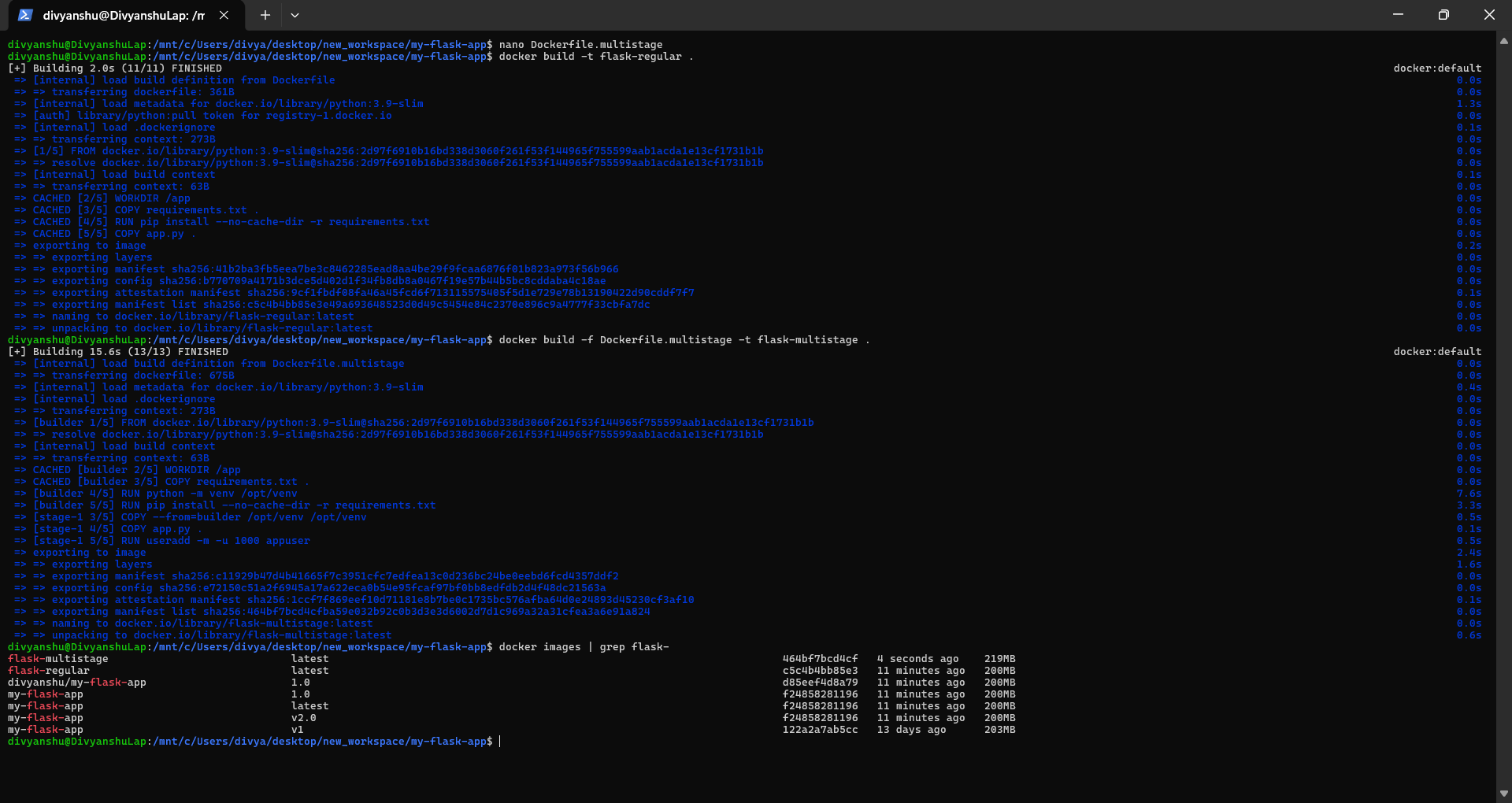
📸 Screenshot – image size comparison:

Part 6: Publishing to Docker Hub
Step 1: Prepare for Publishing
# Login to Docker Hub
docker login

# Tag image for Docker Hub
docker tag my-flask-app:latest username/my-flask-app:1.0
docker tag my-flask-app:latest username/my-flask-app:latest

# Push to Docker Hub
docker push username/my-flask-app:1.0
docker push username/my-flask-app:latest
📸 Screenshot – docker push output:

Step 2: Pull and Run from Docker Hub
# Pull from Docker Hub
docker pull username/my-flask-app:latest

# Run the pulled image
docker run -d -p 5000:5000 username/my-flask-app:latest
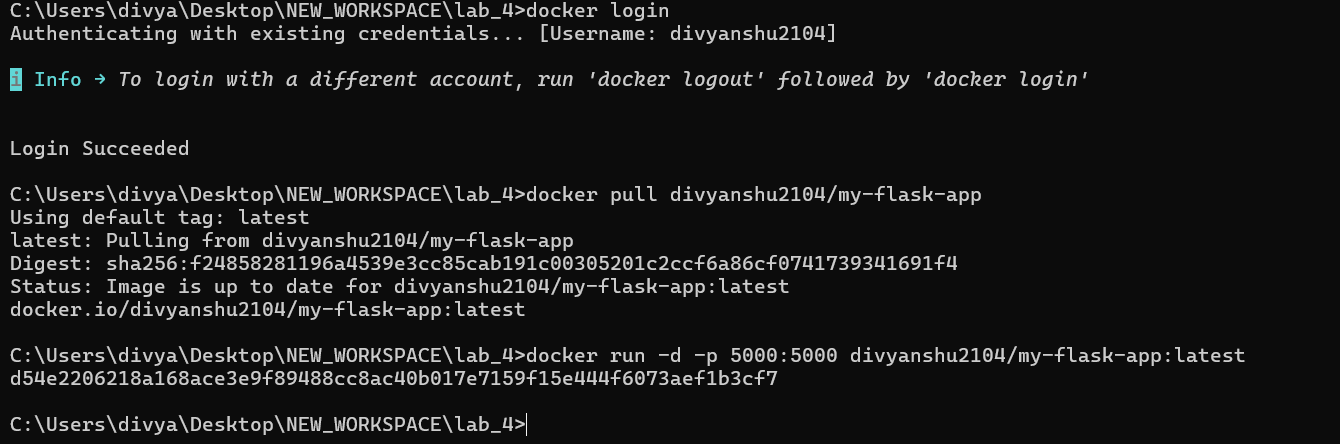
📸 Screenshot – docker pull and run from Docker Hub:
Essential Docker Commands Cheatsheet
| Command | Purpose | Example |
|---|---|---|
docker build |
Build image | docker build -t myapp . |
docker run |
Run container | docker run -p 3000:3000 myapp |
docker ps |
List containers | docker ps -a |
docker images |
List images | docker images |
docker tag |
Tag image | docker tag myapp:latest myapp:v1 |
docker login |
Login to Docker Hub | echo "token" \| docker login -u username --password-stdin |
docker push |
Push to registry | docker push username/myapp |
docker pull |
Pull from registry | docker pull username/myapp |
docker rm |
Remove container | docker rm container-name |
docker rmi |
Remove image | docker rmi image-name |
docker logs |
View logs | docker logs container-name |
docker exec |
Execute command | docker exec -it container-name bash |
Common Workflow Summary
Development Workflow
# 1. Create Dockerfile and .dockerignore
# 2. Build image
docker build -t myapp .

# 3. Test locally
docker run -p 8080:8080 myapp

# 4. Tag for production
docker tag myapp:latest myapp:v1.0

# 5. Push to registry
docker push myapp:v1.0
Production Workflow
# 1. Pull from registry
docker pull myapp:v1.0

# 2. Run in production
docker run -d -p 80:8080 --name prod-app myapp:v1.0

# 3. Monitor
docker logs -f prod-app
Key Takeaways
- Dockerfile defines how to build your image
- .dockerignore excludes unnecessary files (important for security and performance)
- Tagging helps version and organize images
- Multi-stage builds create smaller, more secure production images
- Docker Hub allows sharing and distributing images
- Always test images locally before publishing
Cleanup
# Remove all stopped containers
docker container prune

# Remove unused images
docker image prune

# Remove everything unused
docker system prune -a