Containerization_and_DevOpsLab
Experiment 5: Docker - Volumes, Environment Variables, Monitoring & Networks
Part 1: Docker Volumes - Persistent Data Storage
Lab 1: Understanding Data Persistence
The Problem: Container Data is Ephemeral
# Create a container that writes data
docker run -it --name test-container ubuntu /bin/bash

# Inside container:
echo "Hello World" > /data/message.txt
cat /data/message.txt  # Shows "Hello World"
exit

# Restart container
docker start test-container
docker exec test-container cat /data/message.txt
# ERROR: File doesn't exist! Data was lost.
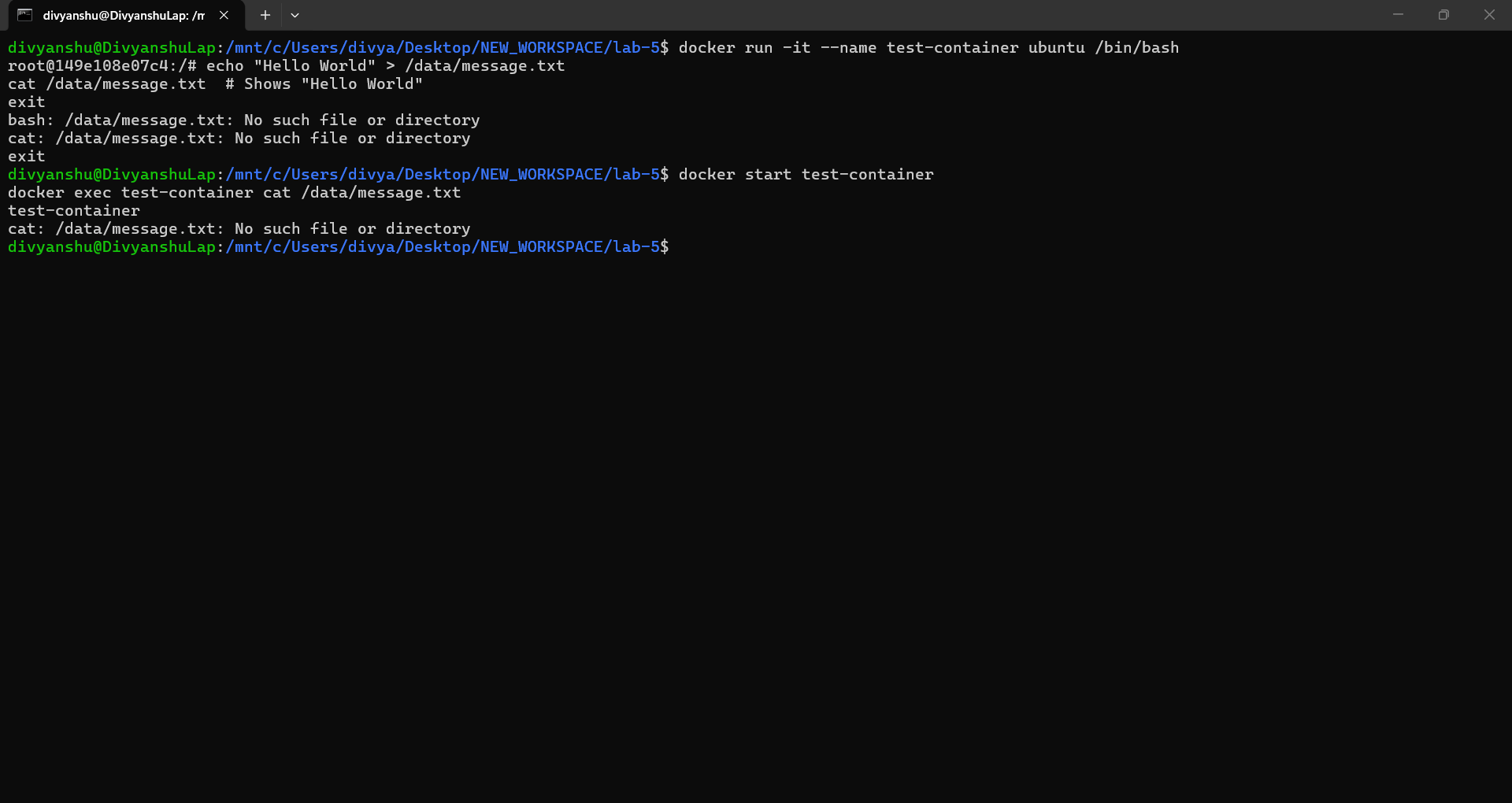
📸 Screenshot – data loss after container restart:
Lab 2: Volume Types
1. Anonymous Volumes
# Create anonymous volume (auto-generated name)
docker run -d -v /app/data --name web1 nginx

# Check volume
docker volume ls

# Inspect container to see volume mount
docker inspect web1 | grep -A 5 Mounts
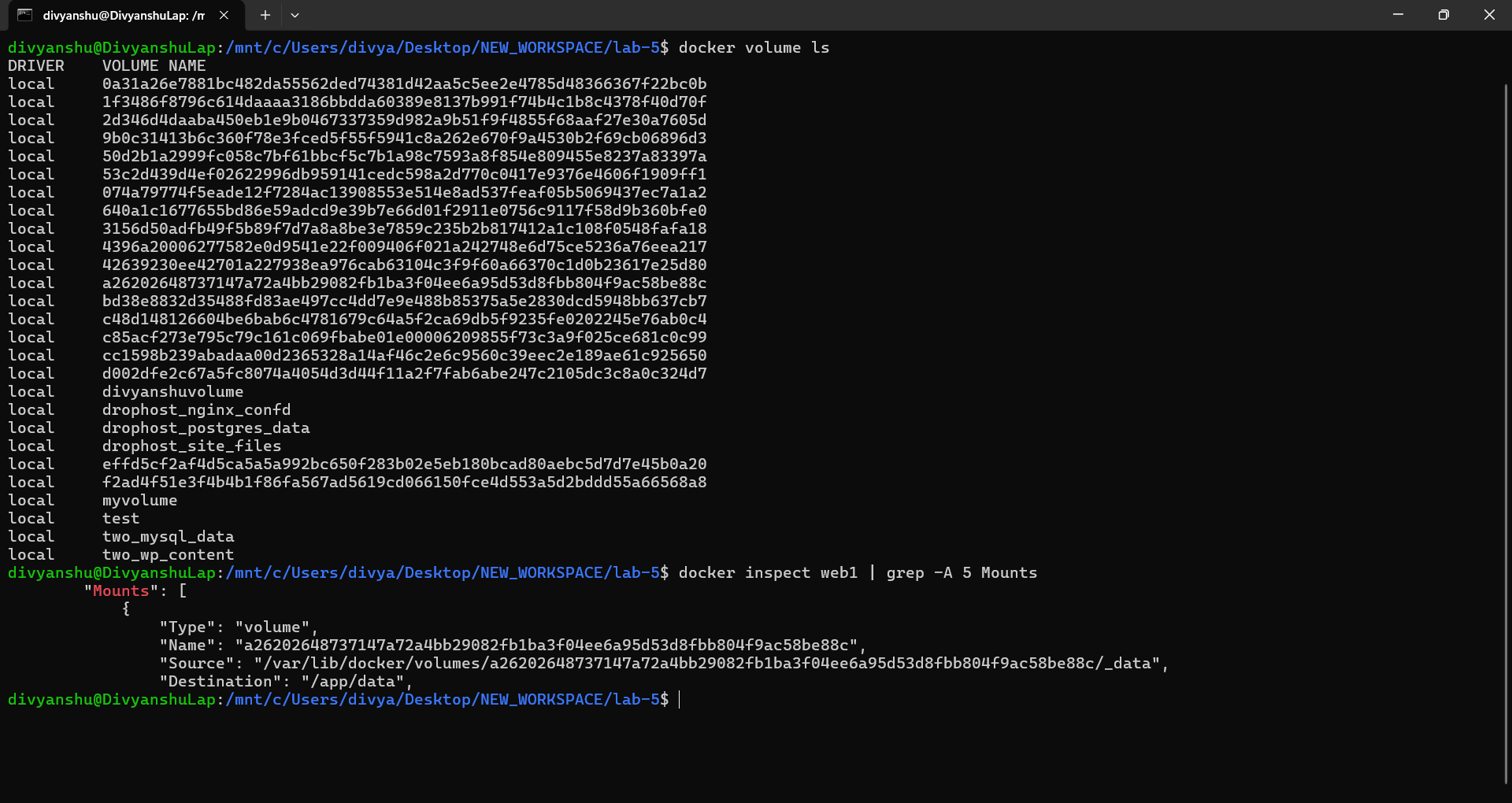
📸 Screenshot – anonymous volume creation and listing:
2. Named Volumes
# Create named volume
docker volume create mydata

# Use named volume
docker run -d -v mydata:/app/data --name web2 nginx

# List volumes
docker volume ls

# Inspect volume
docker volume inspect mydata
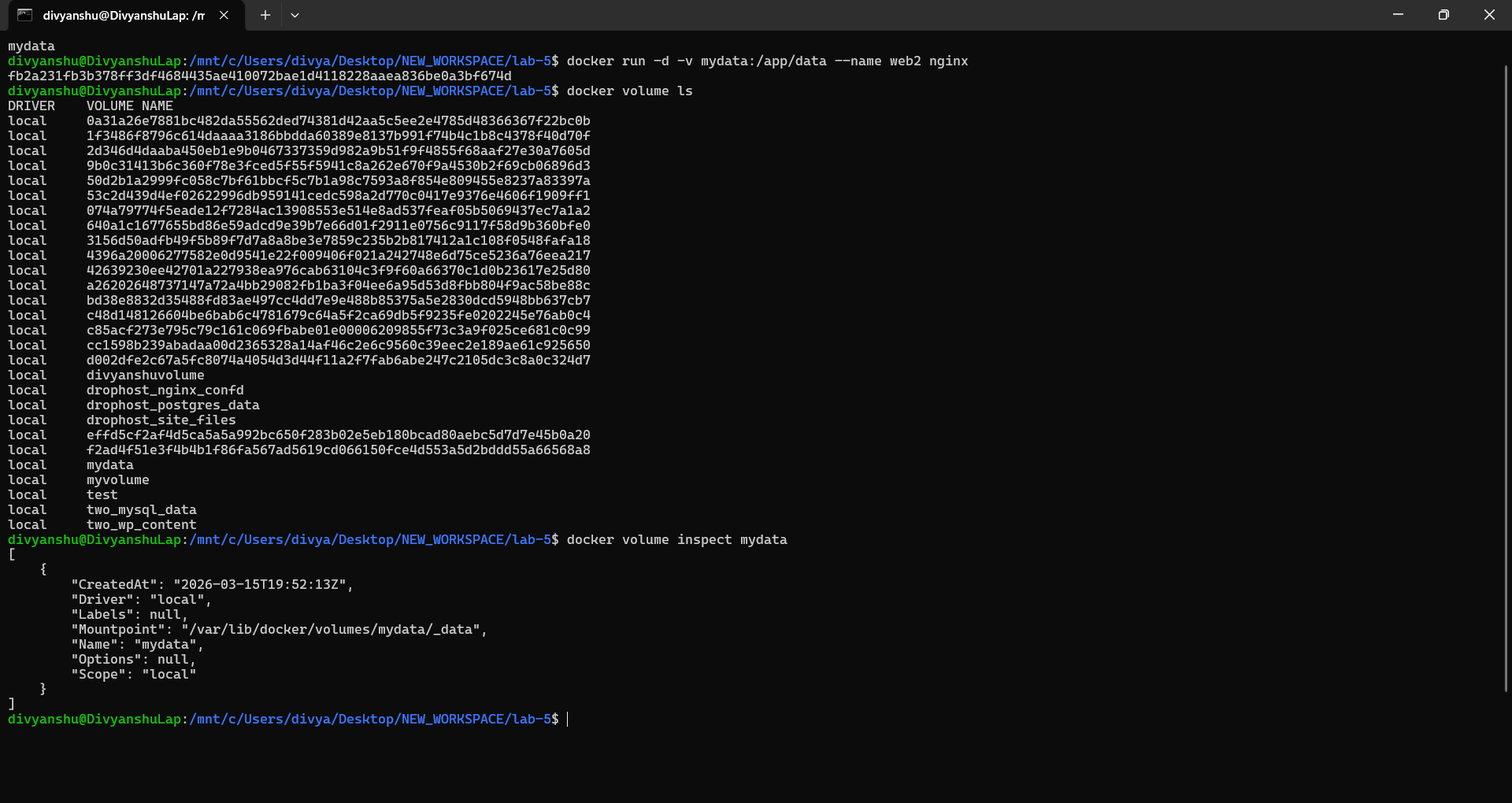
📸 Screenshot – named volume created and inspected:
3. Bind Mounts (Host Directory)
# Create directory on host
mkdir ~/myapp-data

# Mount host directory to container
docker run -d -v ~/myapp-data:/app/data --name web3 nginx

# Add file on host
echo "From Host" > ~/myapp-data/host-file.txt

# Check in container
docker exec web3 cat /app/data/host-file.txt
# Shows: From Host
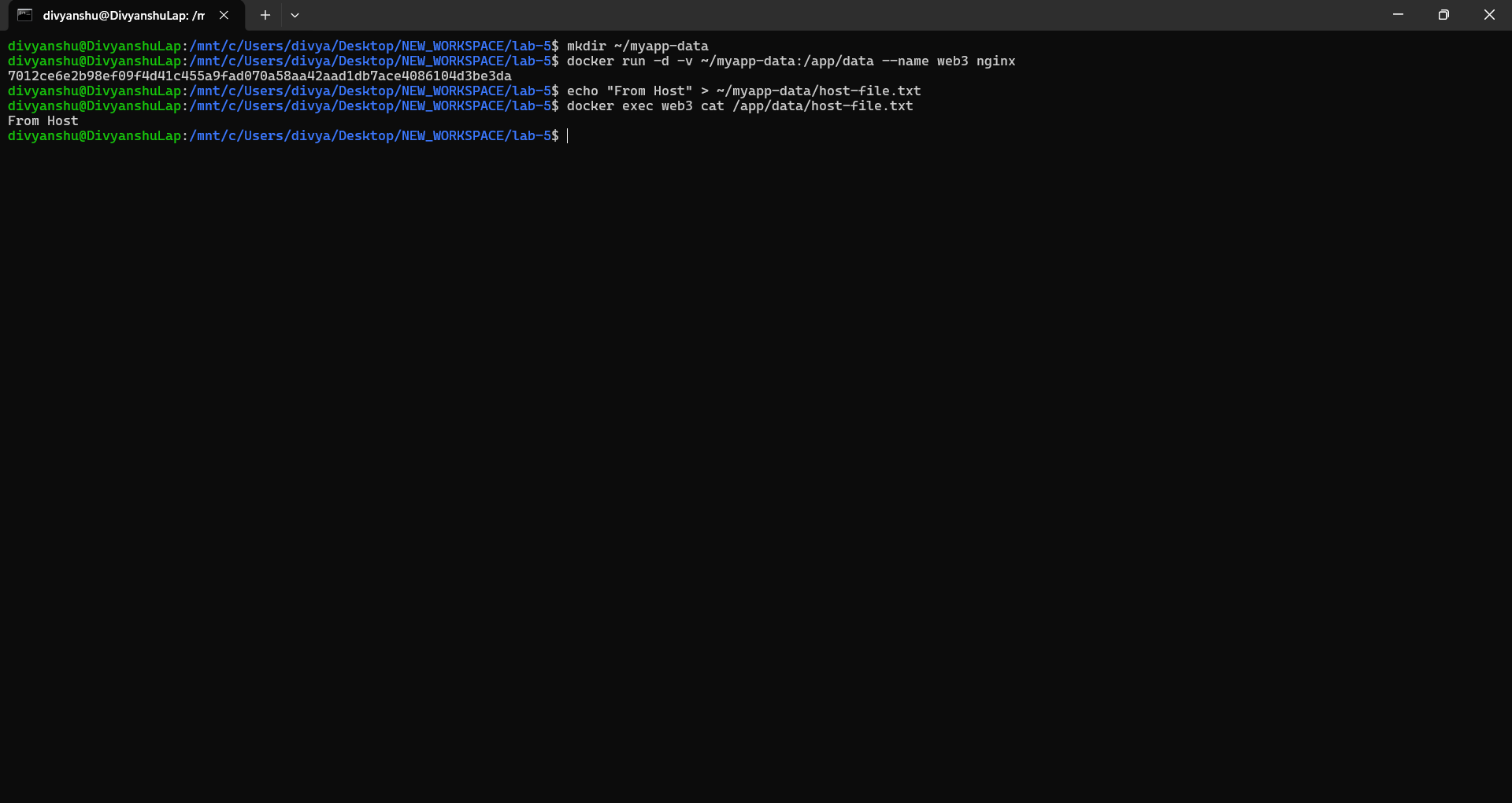
📸 Screenshot – bind mount file accessible inside container:
Lab 3: Practical Volume Examples
Example 1: Database with Persistent Storage
# MySQL with named volume
docker run -d \
  --name mysql-db \
  -v mysql-data:/var/lib/mysql \
  -e MYSQL_ROOT_PASSWORD=secret \
  mysql:8.0

# Check data persists after removing container
docker stop mysql-db
docker rm mysql-db

# New container with same volume - data is preserved!
docker run -d \
  --name new-mysql \
  -v mysql-data:/var/lib/mysql \
  -e MYSQL_ROOT_PASSWORD=secret \
  mysql:8.0
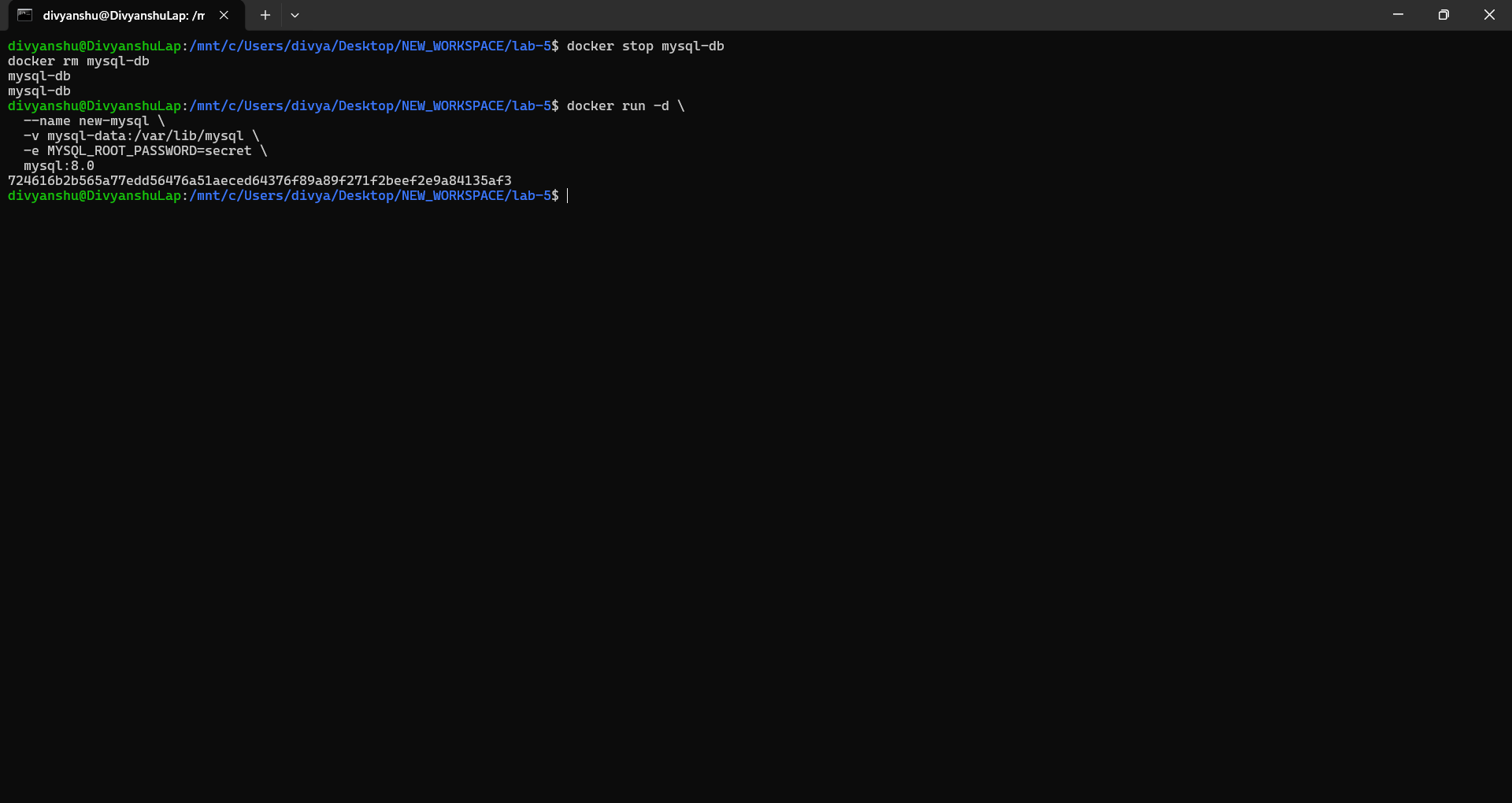
📸 Screenshot – MySQL data persisting after container recreation:
Example 2: Web App with Configuration Files
# Create config directory
mkdir ~/nginx-config

# Create nginx config file
echo 'server {
    listen 80;
    server_name localhost;
    location / {
        return 200 "Hello from mounted config!";
    }
}' > ~/nginx-config/nginx.conf

# Run nginx with config bind mount
docker run -d \
  --name nginx-custom \
  -p 8080:80 \
  -v ~/nginx-config/nginx.conf:/etc/nginx/conf.d/default.conf \
  nginx

# Test
curl http://localhost:8080
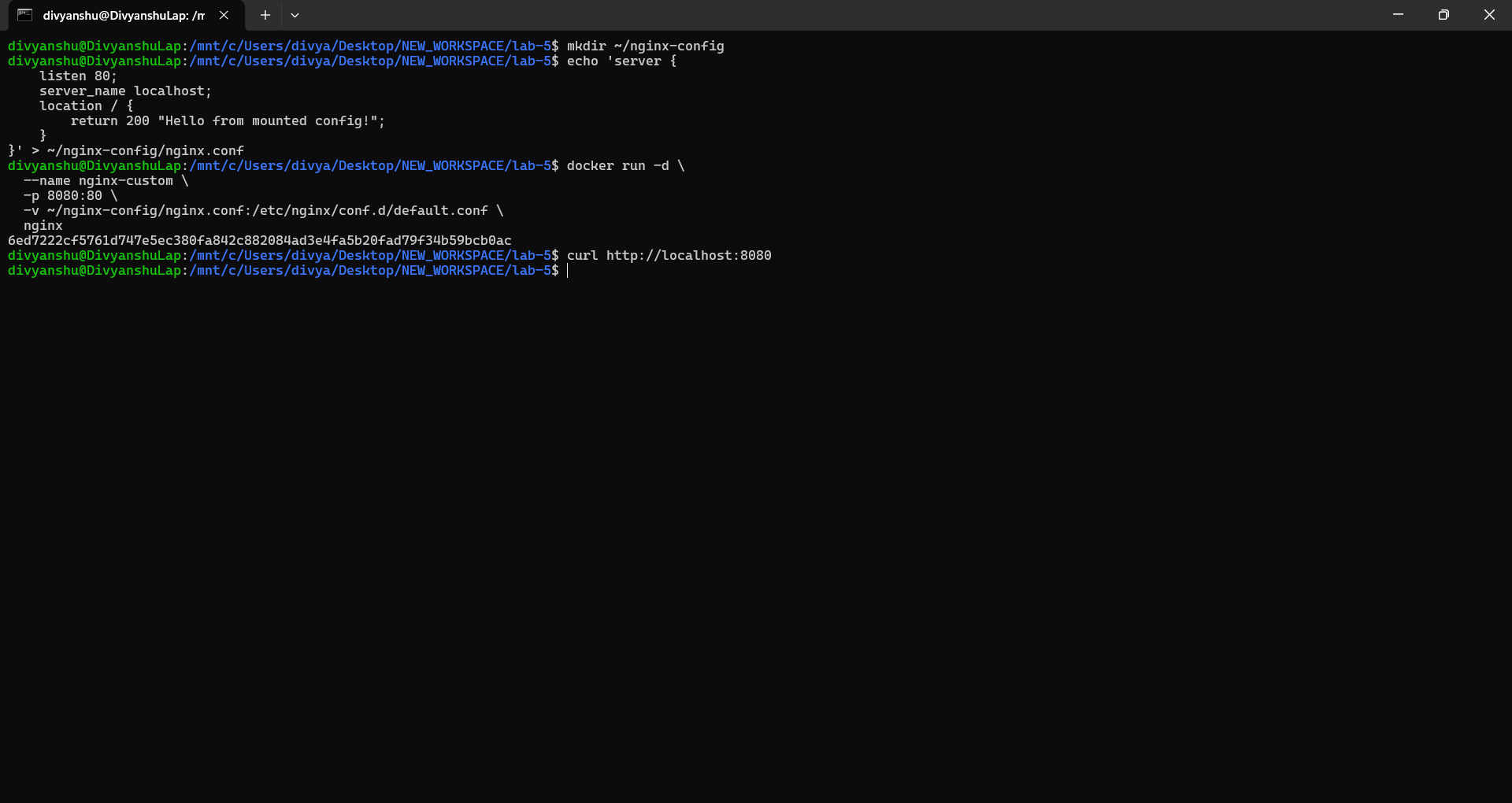
📸 Screenshot – nginx serving from bind-mounted config:
Lab 4: Volume Management Commands
# List all volumes
docker volume ls

# Create a volume
docker volume create app-volume

# Inspect volume details
docker volume inspect app-volume

# Remove unused volumes
docker volume prune

# Remove specific volume
docker volume rm volume-name

# Copy files to/from volume
docker cp local-file.txt container-name:/path/in/volume
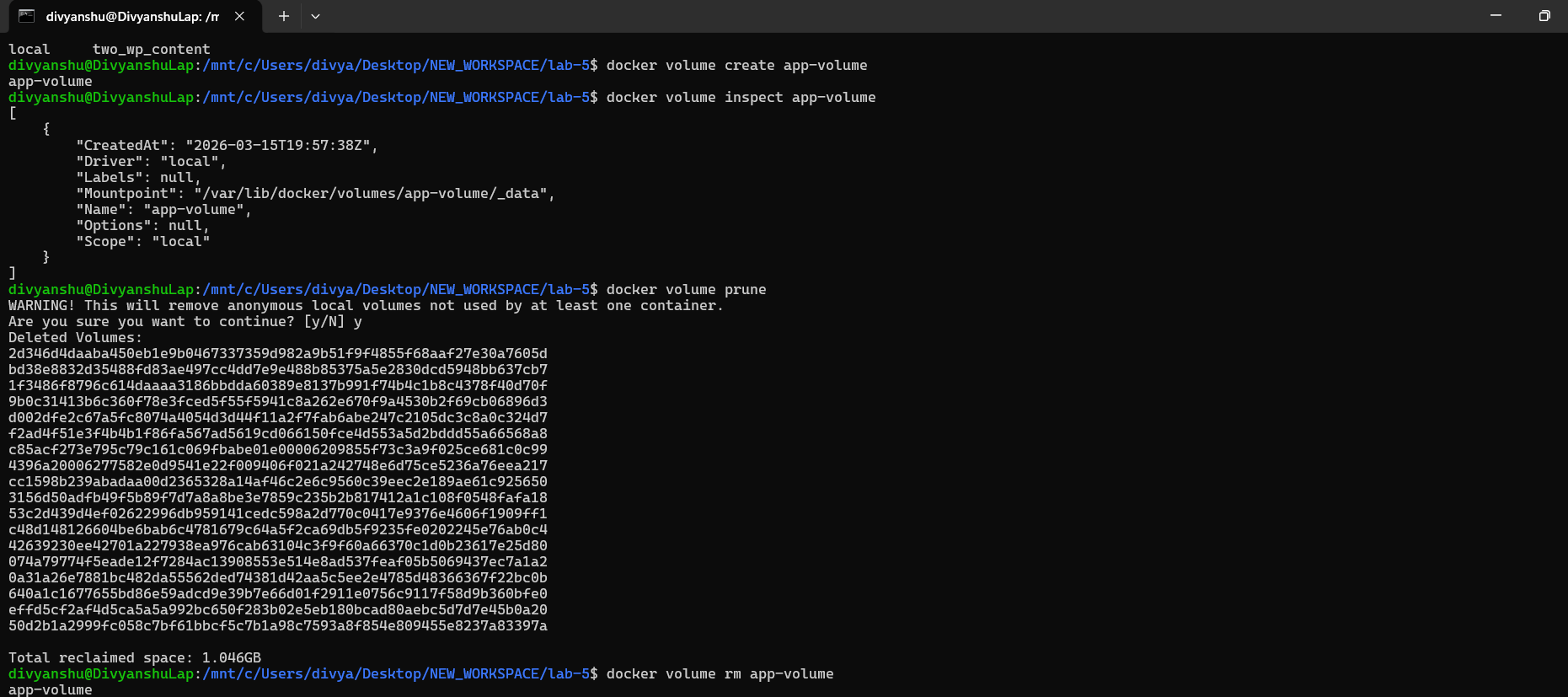
📸 Screenshot – volume management commands output:
Part 2: Environment Variables
Lab 1: Setting Environment Variables
Method 1: Using -e flag
# Single variable
docker run -d \
  --name app1 \
  -e DATABASE_URL="postgres://user:pass@db:5432/mydb" \
  -e DEBUG="true" \
  -p 3000:3000 \
  my-node-app

# Multiple variables
docker run -d \
  -e VAR1=value1 \
  -e VAR2=value2 \
  -e VAR3=value3 \
  my-app
Method 2: Using --env-file
# Create .env file
echo "DATABASE_HOST=localhost" > .env
echo "DATABASE_PORT=5432" >> .env
echo "API_KEY=secret123" >> .env

# Use env file
docker run -d \
  --env-file .env \
  --name app2 \
  my-app

# Use multiple env files
docker run -d \
  --env-file .env \
  --env-file .env.secrets \
  my-app
Method 3: In Dockerfile
# Set default environment variables
ENV NODE_ENV=production
ENV PORT=3000
ENV APP_VERSION=1.0.0

# Can be overridden at runtime
Lab 2: Environment Variables in Applications
Python Flask Example
app.py:
import os
from flask import Flask

app = Flask(__name__)

# Read environment variables
db_host = os.environ.get('DATABASE_HOST', 'localhost')
debug_mode = os.environ.get('DEBUG', 'false').lower() == 'true'
api_key = os.environ.get('API_KEY')

@app.route('/config')
def config():
    return {
        'db_host': db_host,
        'debug': debug_mode,
        'has_api_key': bool(api_key)
    }

if __name__ == '__main__':
    port = int(os.environ.get('PORT', 5000))
    app.run(host='0.0.0.0', port=port, debug=debug_mode)
Dockerfile with Environment Variables
FROM python:3.9-slim

ENV PYTHONUNBUFFERED=1
ENV PYTHONDONTWRITEBYTECODE=1

WORKDIR /app

COPY requirements.txt .
RUN pip install -r requirements.txt

COPY app.py .

ENV PORT=5000
ENV DEBUG=false

EXPOSE 5000

CMD ["python", "app.py"]
Lab 3: Test Environment Variables
# Run with custom env vars
docker run -d \
  --name flask-app \
  -p 5000:5000 \
  -e DATABASE_HOST="prod-db.example.com" \
  -e DEBUG="true" \
  -e PORT="8080" \
  flask-app

# Check environment in running container
docker exec flask-app env
docker exec flask-app printenv DATABASE_HOST

# Test the endpoint
curl http://localhost:5000/config
Part 3: Docker Monitoring
Lab 1: Basic Monitoring Commands
docker stats – Real-time Container Metrics
# Live stats for all containers
docker stats

# Live stats for specific containers
docker stats container1 container2

# Custom format output
docker stats --format "table \t\t\t"

# No-stream (single snapshot)
docker stats --no-stream

# All containers (including stopped)
docker stats --all
Useful Format Options:
# Custom format
docker stats --format "Container:  | CPU:  | Memory: "

# JSON output
docker stats --format json --no-stream

# Wide output
docker stats --no-stream --no-trunc
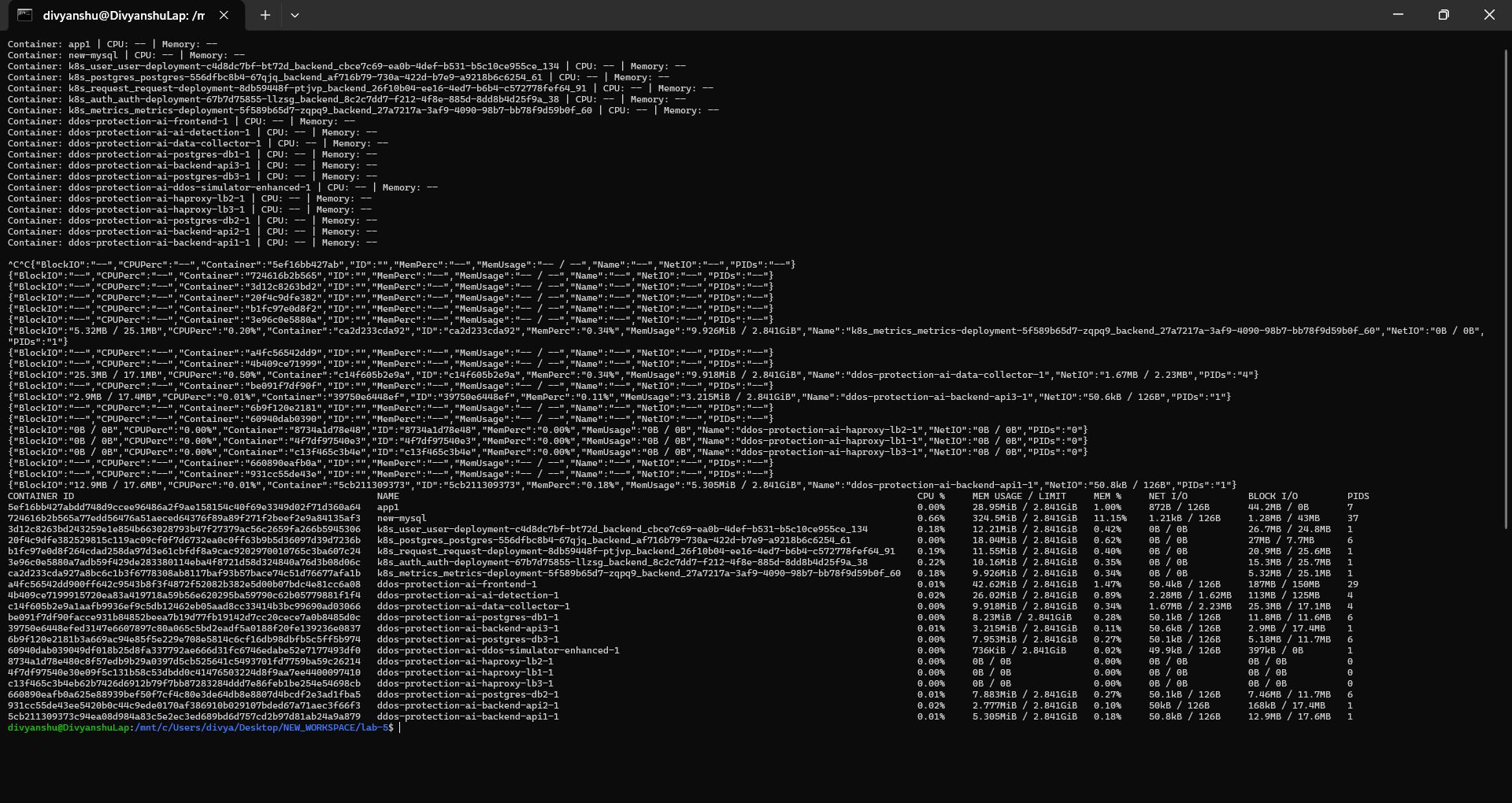
📸 Screenshot – docker stats output:
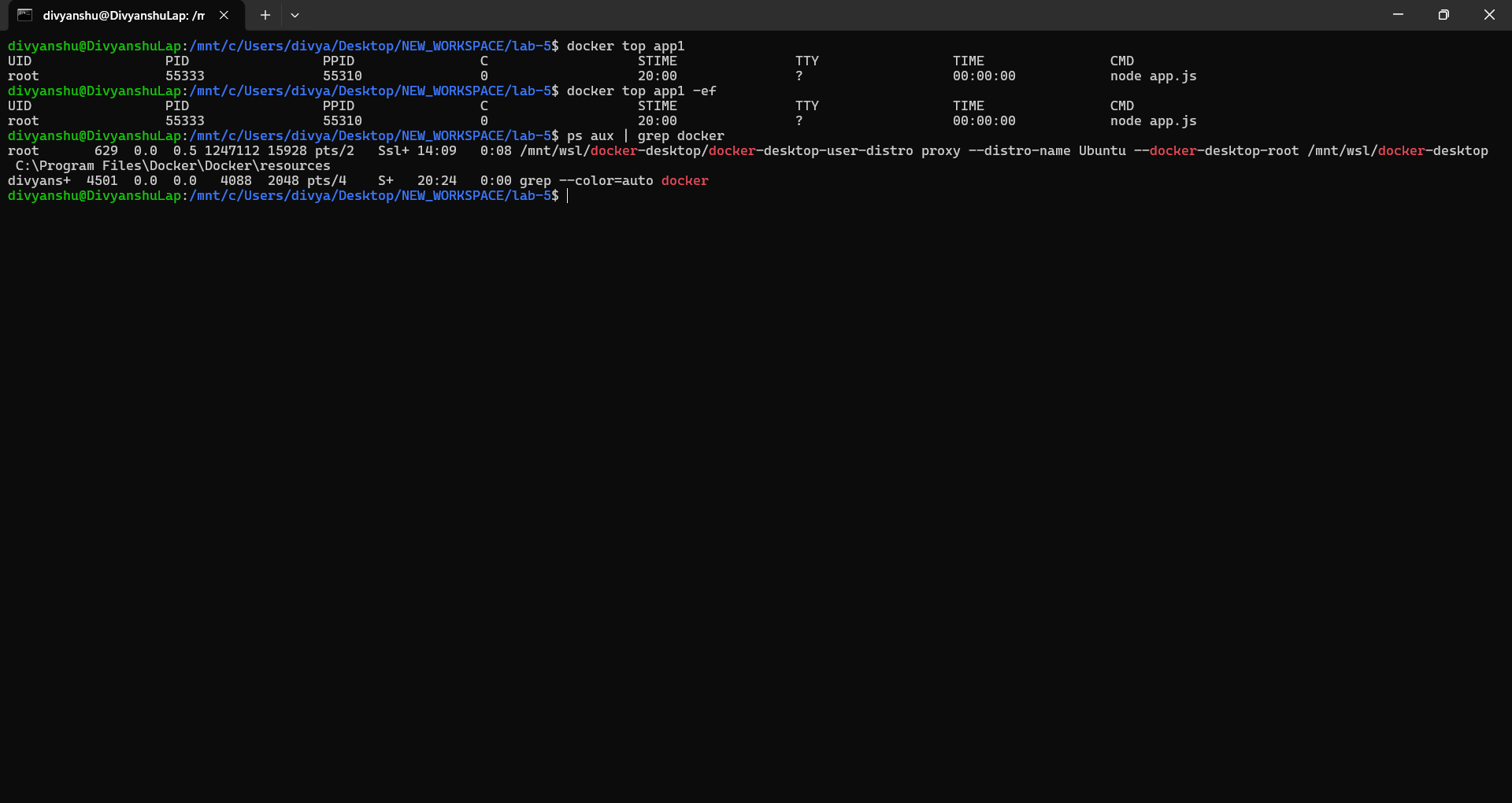
Lab 2: docker top – Process Monitoring
# View processes in container
docker top container-name

# View with full command line
docker top container-name -ef

# Compare with host processes
ps aux | grep docker
📸 Screenshot – docker top output:
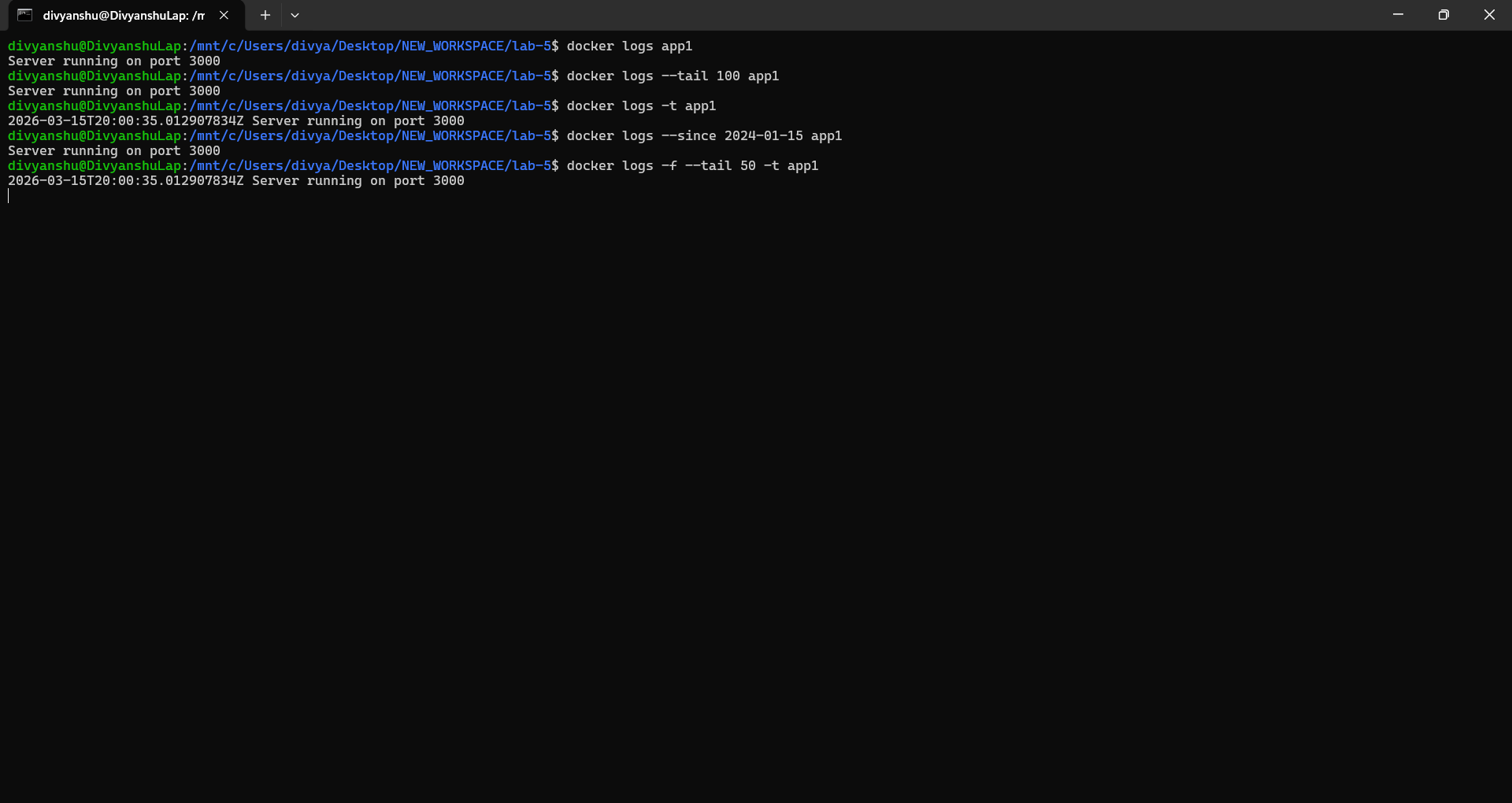
Lab 3: docker logs – Application Logs
# View logs
docker logs container-name

# Follow logs (like tail -f)
docker logs -f container-name

# Last N lines
docker logs --tail 100 container-name

# Logs with timestamps
docker logs -t container-name

# Logs since specific time
docker logs --since 2024-01-15 container-name

# Combine options
docker logs -f --tail 50 -t container-name
📸 Screenshot – docker logs with various options:
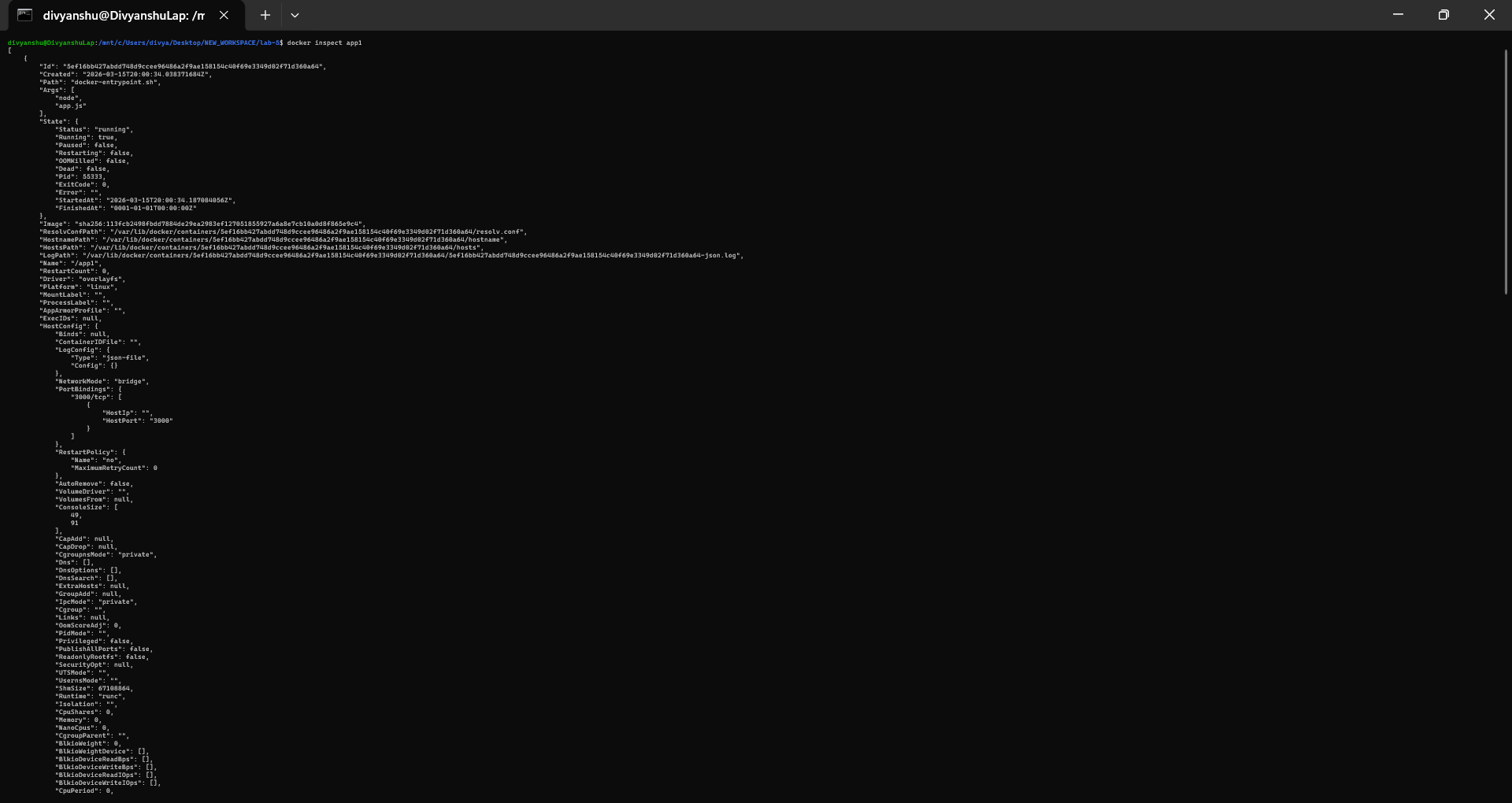
Lab 4: Container Inspection
# Detailed container info
docker inspect container-name

# Specific information
docker inspect --format='' container-name
docker inspect --format='' container-name
docker inspect --format='' container-name

# Resource limits
docker inspect --format='' container-name
docker inspect --format='' container-name
📸 Screenshot – docker inspect output (formatted):
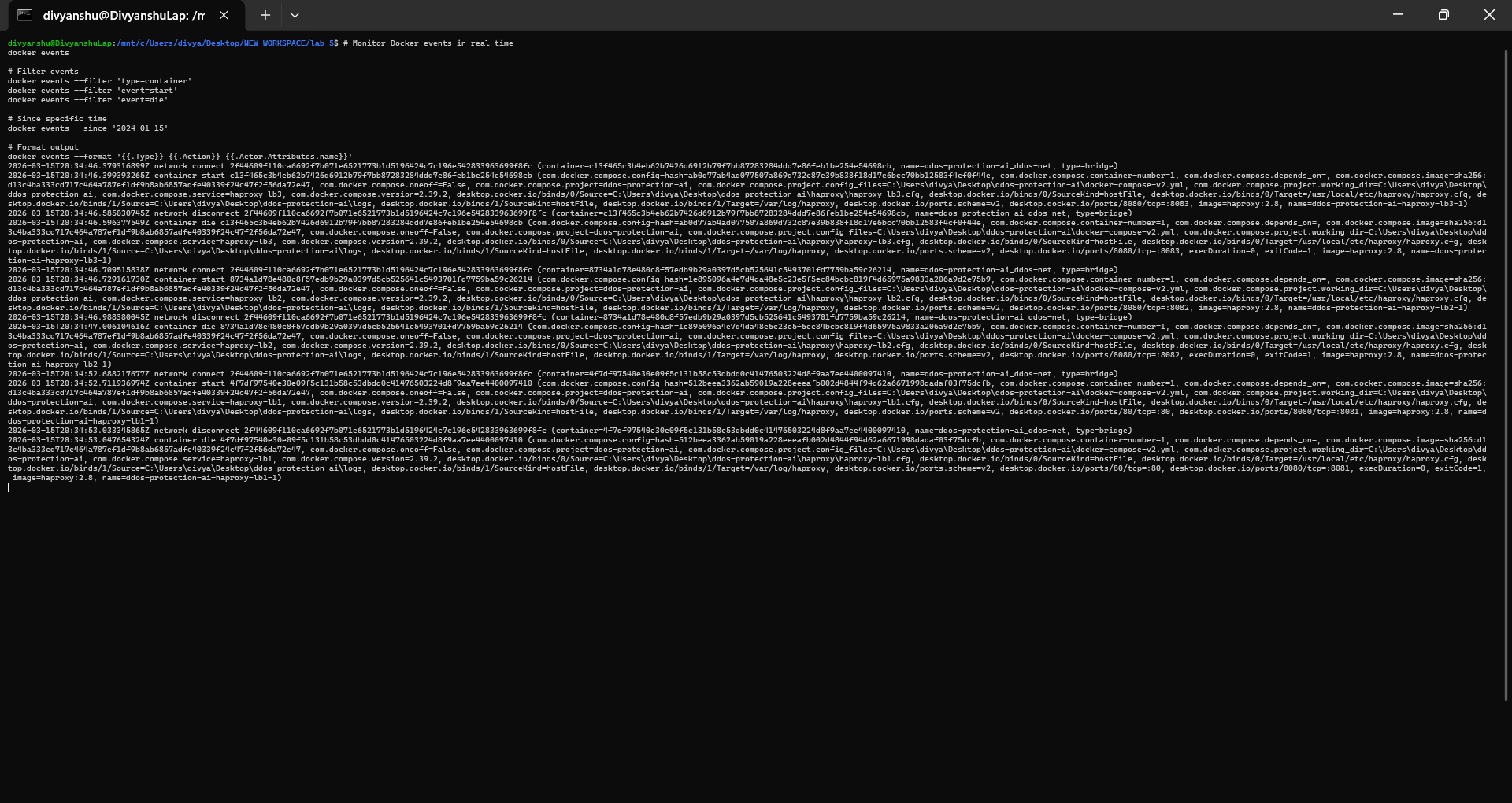
Lab 5: Events Monitoring
# Monitor Docker events in real-time
docker events

# Filter events
docker events --filter 'type=container'
docker events --filter 'event=start'
docker events --filter 'event=die'

# Since specific time
docker events --since '2024-01-15'

# Format output
docker events --format '  '
📸 Screenshot – docker events output:
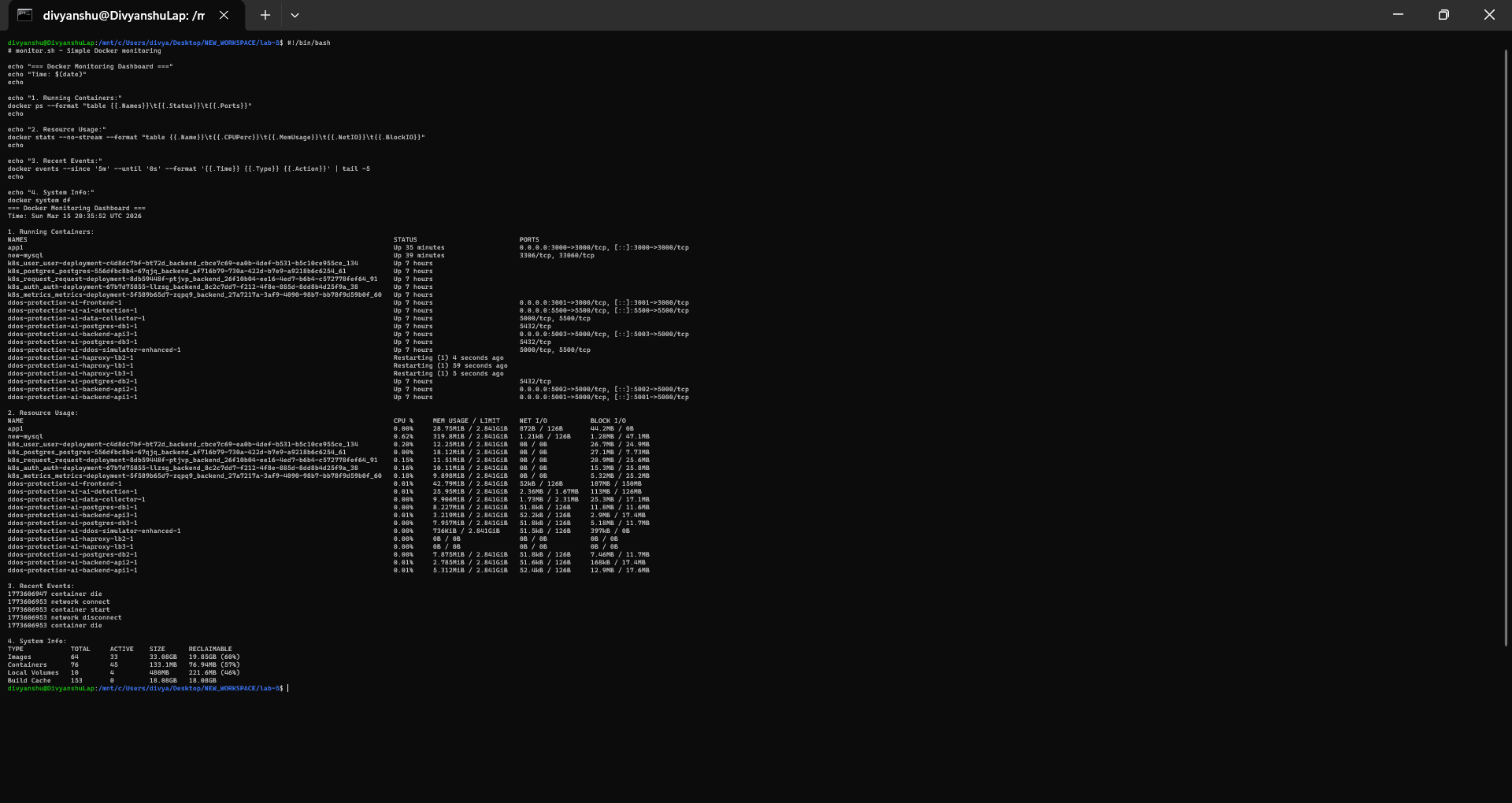
Lab 6: Practical Monitoring Script
monitor.sh:
#!/bin/bash
# monitor.sh - Simple Docker monitoring

echo "=== Docker Monitoring Dashboard ==="
echo "Time: $(date)"
echo

echo "1. Running Containers:"
docker ps --format "table \t\t"
echo

echo "2. Resource Usage:"
docker stats --no-stream --format "table \t\t\t\t"
echo

echo "3. Recent Events:"
docker events --since '5m' --until '0s' --format '  ' | tail -5
echo

echo "4. System Info:"
docker system df
📸 Screenshot – monitoring script execution output:
Part 4: Docker Networks
Lab 1: Understanding Docker Network Types
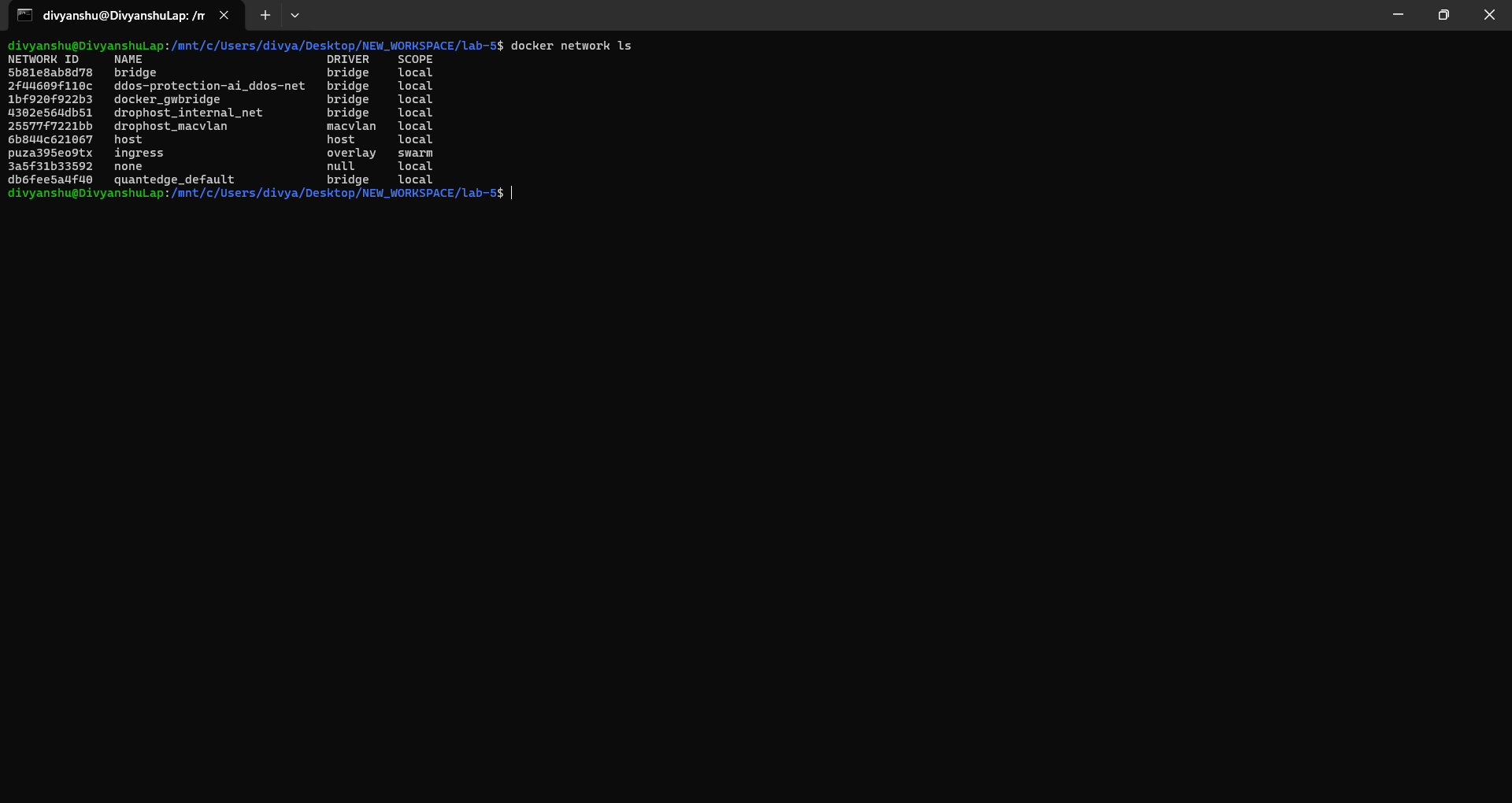
# List default networks
docker network ls

# Output:
# NETWORK ID     NAME      DRIVER    SCOPE
# abc123         bridge    bridge    local
# def456         host      host      local
# ghi789         none      null      local
📸 Screenshot – docker network ls output:
Lab 2: Network Types Explained
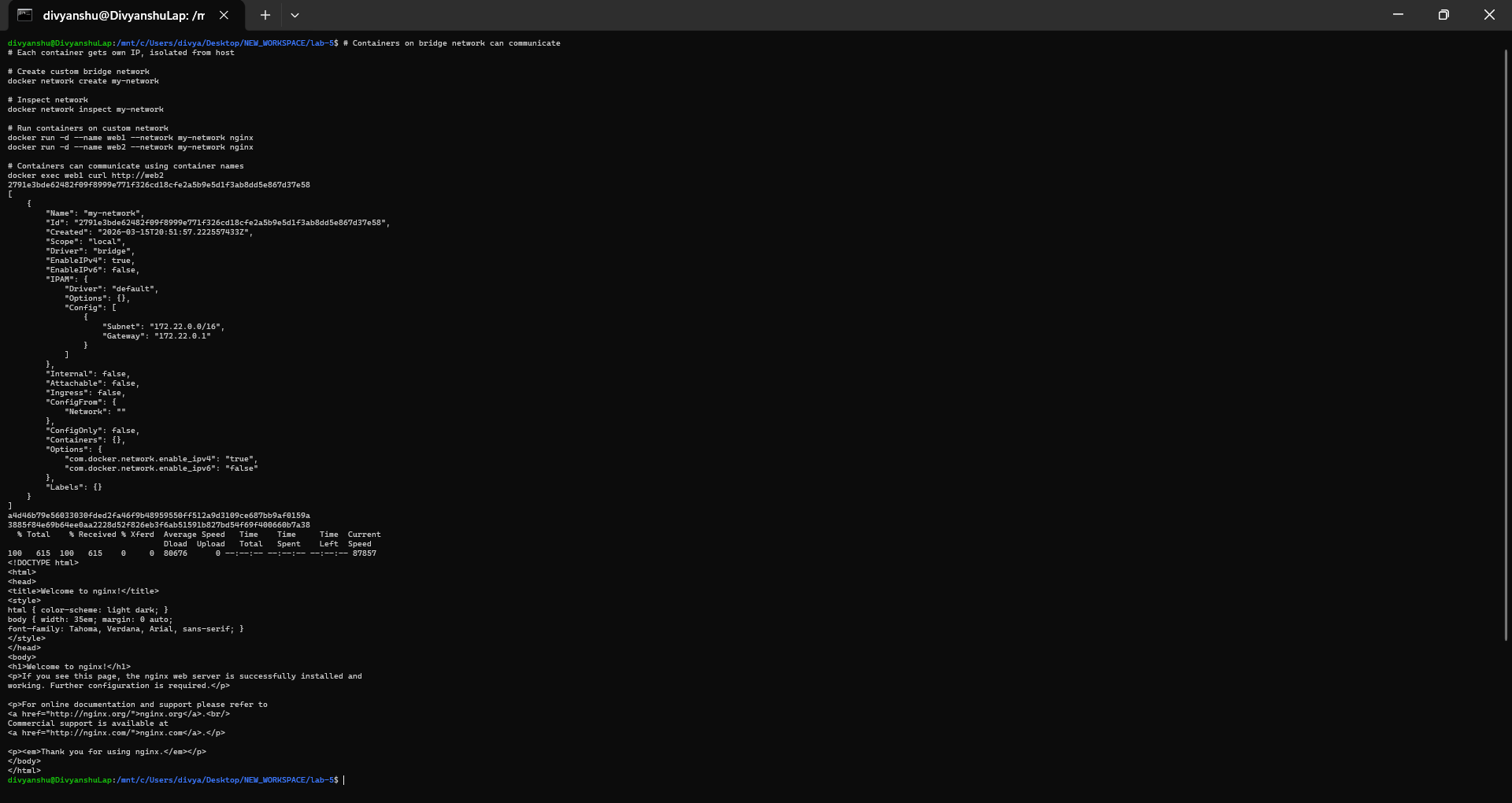
1. Bridge Network (Default)
# Create custom bridge network
docker network create my-network

# Inspect network
docker network inspect my-network

# Run containers on custom network
docker run -d --name web1 --network my-network nginx
docker run -d --name web2 --network my-network nginx

# Containers can communicate using container names
docker exec web1 curl http://web2
📸 Screenshot – bridge network created and containers communicating:
2. Host Network
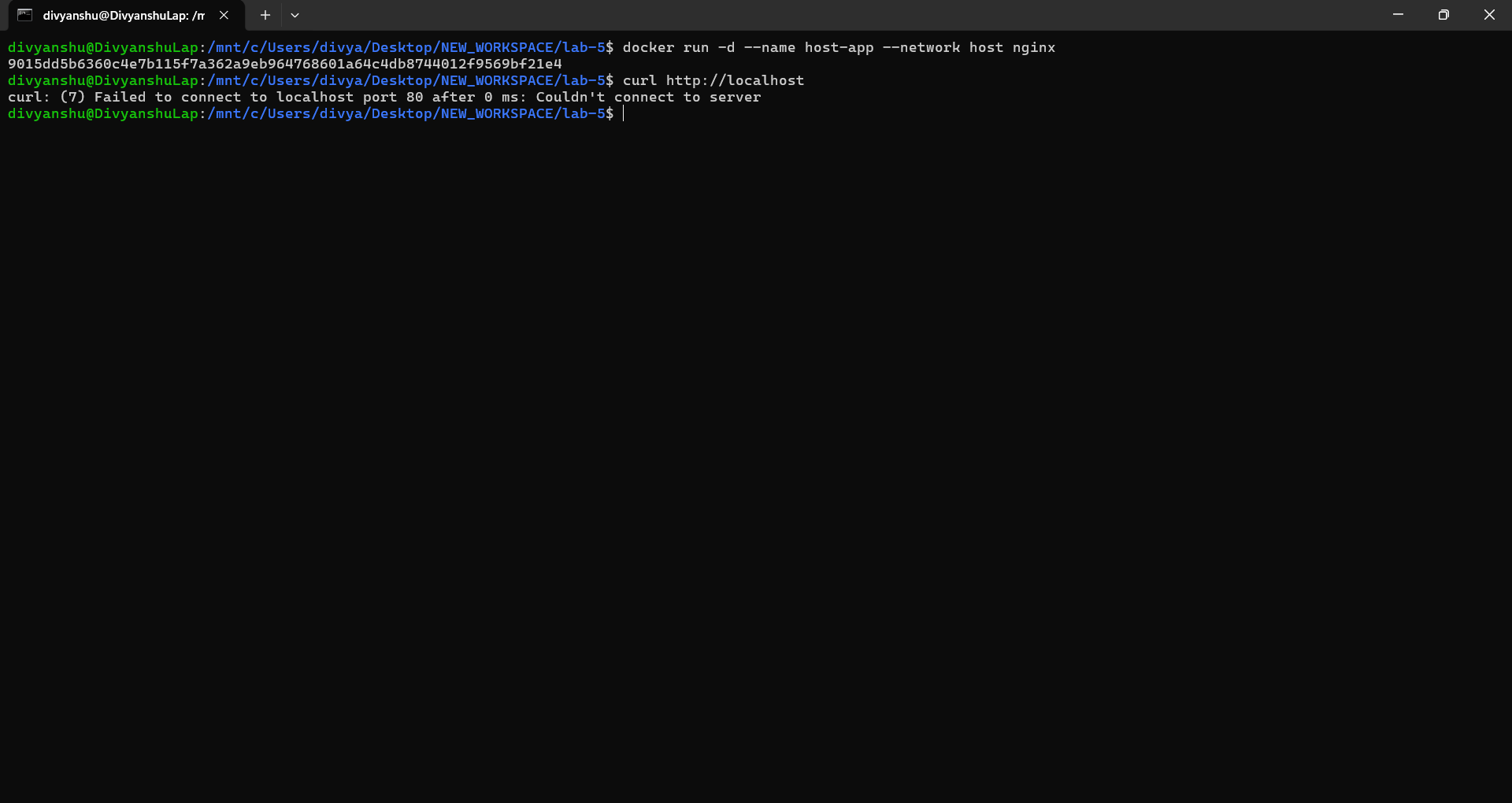
# Container uses host's network directly
docker run -d --name host-app --network host nginx

# Access directly on host port 80
curl http://localhost
📸 Screenshot – host network container running:
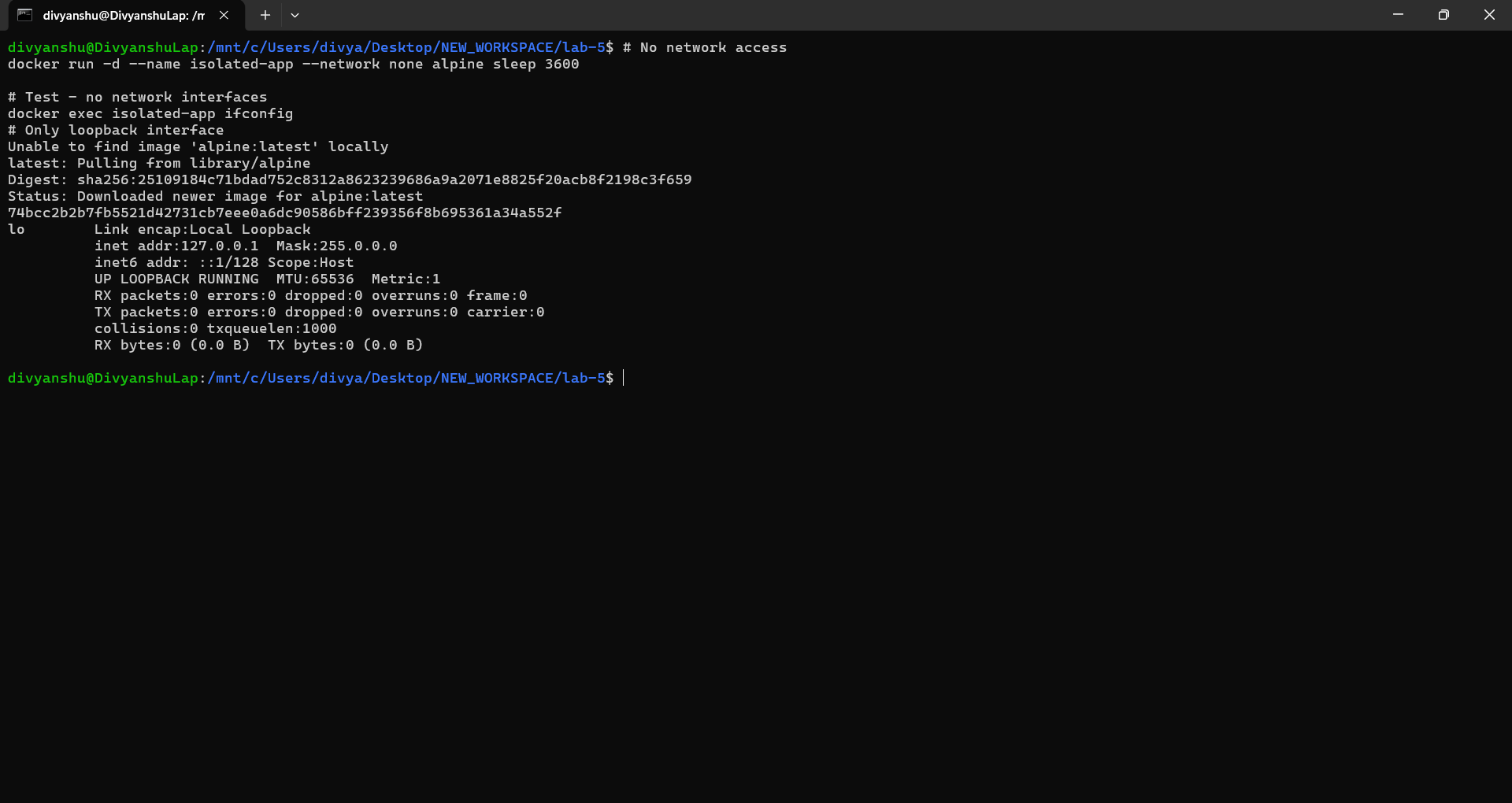
3. None Network
# No network access
docker run -d --name isolated-app --network none alpine sleep 3600

# Test - only loopback interface present
docker exec isolated-app ifconfig
📸 Screenshot – none network showing only loopback:
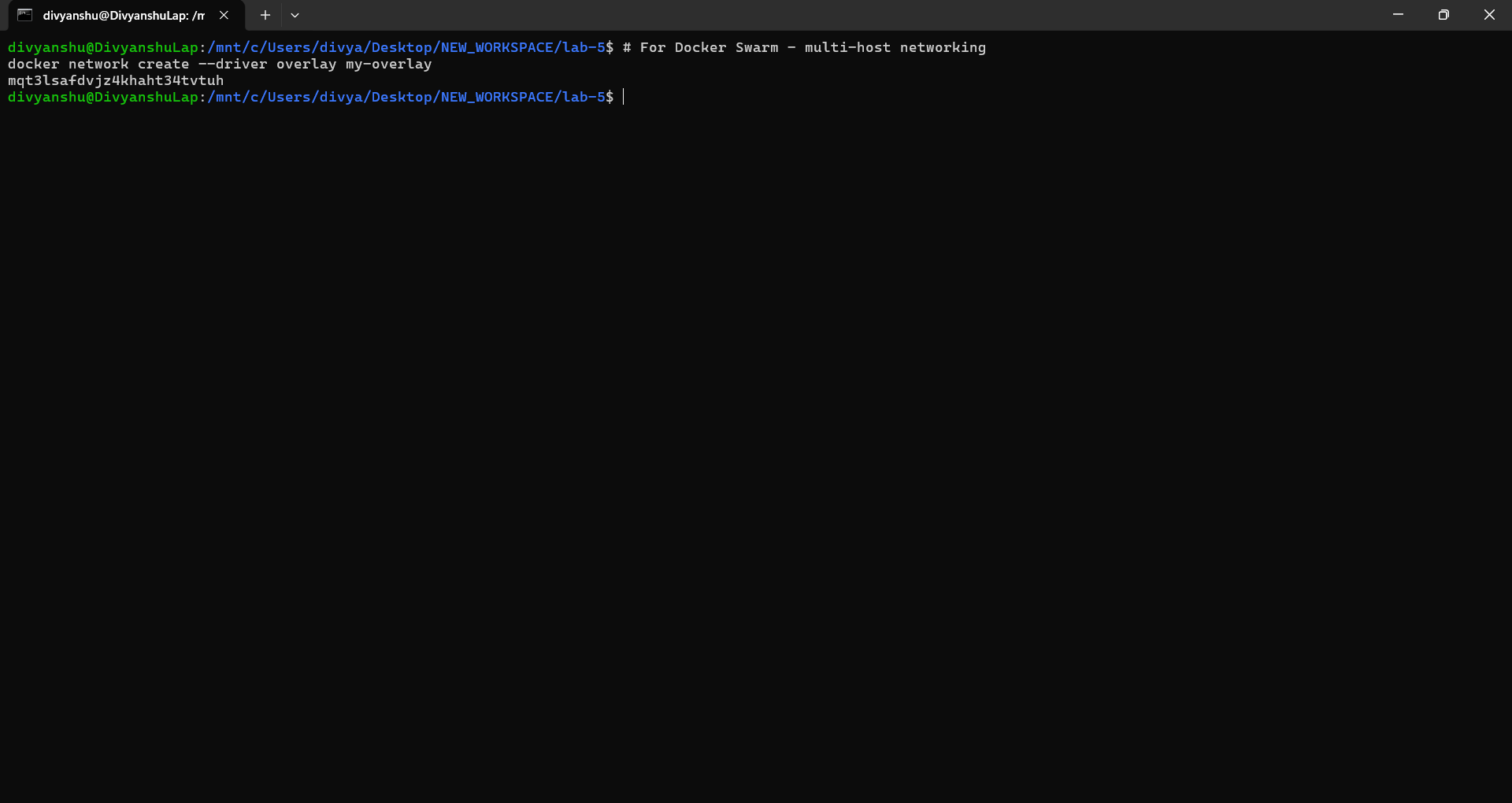
4. Overlay Network (Swarm)
# For Docker Swarm - multi-host networking
docker network create --driver overlay my-overlay
📸 Screenshot – network overlay:
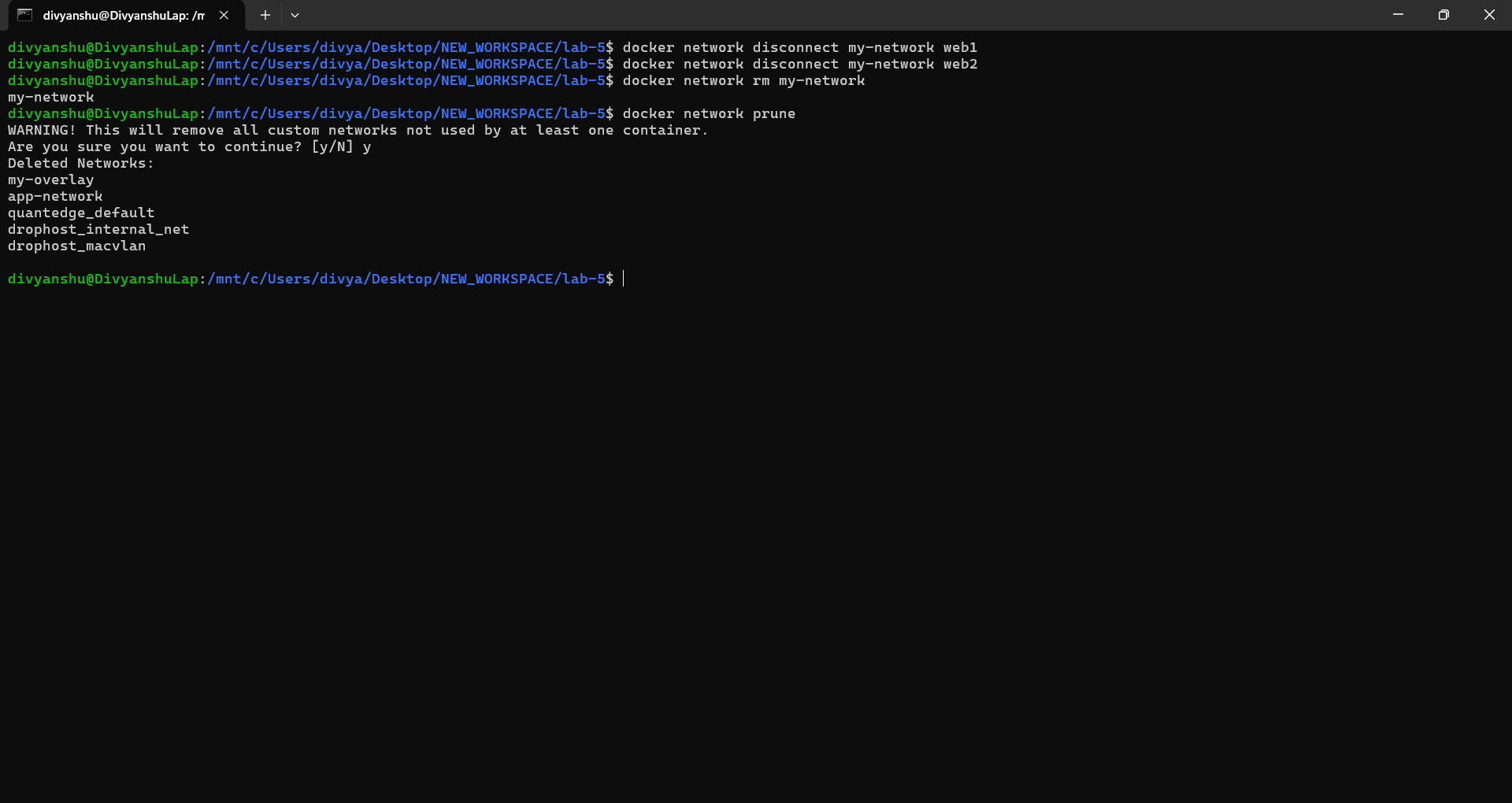
Lab 3: Network Management Commands
# Create network
docker network create app-network

# Create with custom subnet and gateway
docker network create --driver bridge --subnet 172.20.0.0/16 --gateway 172.20.0.1 my-subnet

# Connect container to network
docker network connect app-network existing-container

# Disconnect container from network
docker network disconnect app-network container-name

# Remove network
docker network rm network-name

# Prune unused networks
docker network prune
📸 Screenshot – network management commands:
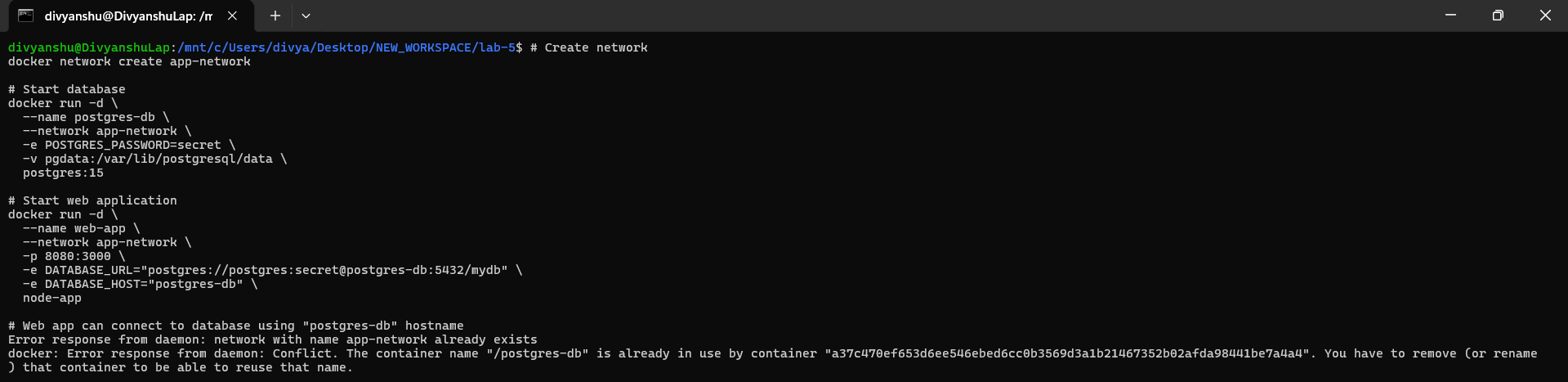
Lab 4: Multi-Container Application Example
Web App + Database Communication:
# Create network
docker network create app-network

# Start database
docker run -d \
  --name postgres-db \
  --network app-network \
  -e POSTGRES_PASSWORD=secret \
  -v pgdata:/var/lib/postgresql/data \
  postgres:15

# Start web application
docker run -d \
  --name web-app \
  --network app-network \
  -p 8080:3000 \
  -e DATABASE_URL="postgres://postgres:secret@postgres-db:5432/mydb" \
  -e DATABASE_HOST="postgres-db" \
  node-app

# Web app connects to database using "postgres-db" as hostname
📸 Screenshot – both containers running on shared network:
Lab 5: Network Inspection & Debugging
# Inspect network
docker network inspect bridge

# Check container IP
docker inspect --format='' container-name

# DNS resolution test
docker exec container-name nslookup another-container

# Network connectivity test
docker exec container-name ping -c 4 google.com
docker exec container-name curl -I http://another-container

# View network ports
docker port container-name
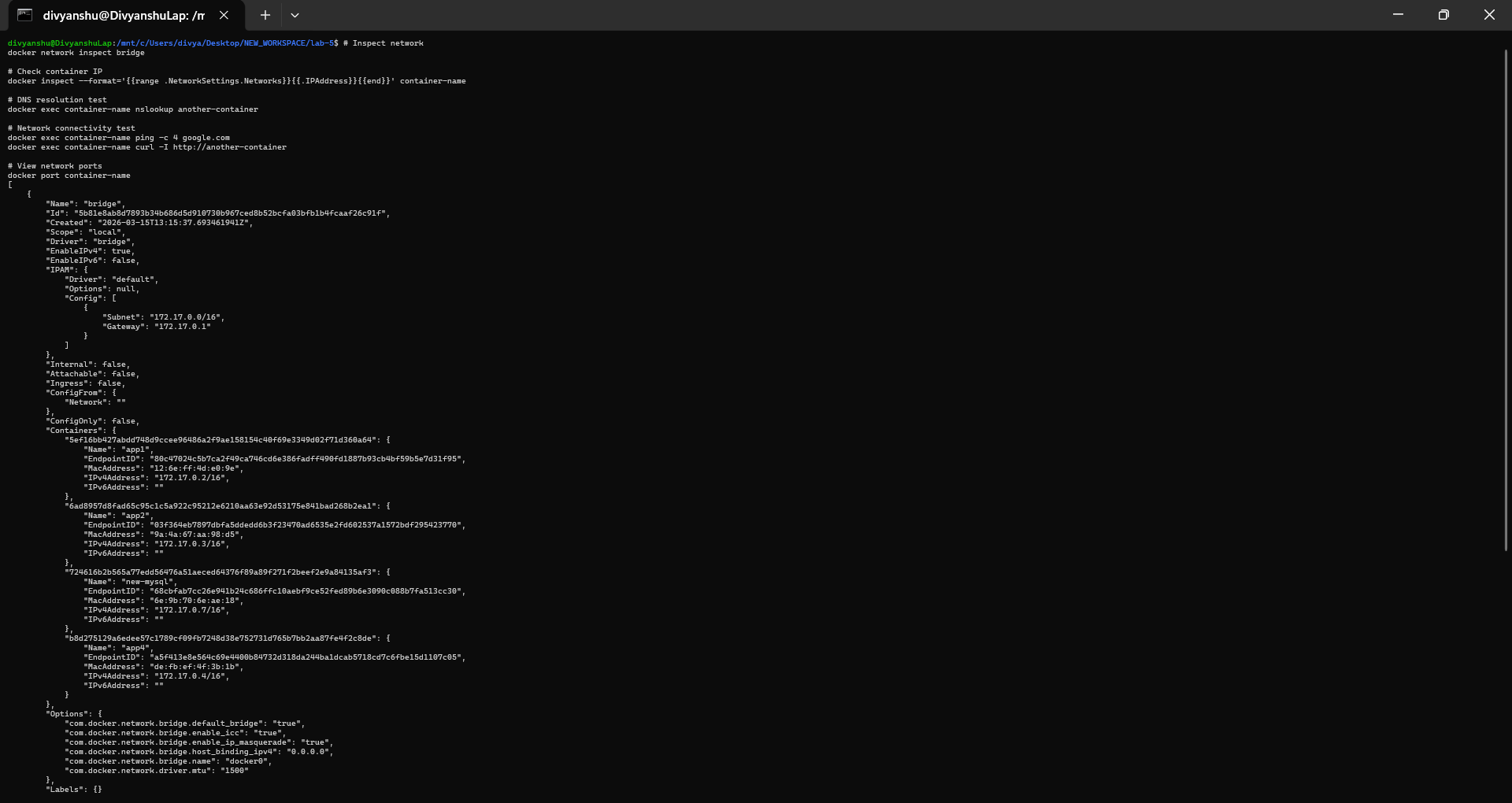
📸 Screenshot – network inspect and DNS resolution test:
Port Publishing vs Exposing:
# PORT PUBLISHING (host:container)
docker run -d -p 80:8080 --name app1 nginx

# Dynamic port publishing
docker run -d -p 8080 --name app2 nginx

# Multiple ports
docker run -d -p 80:80 -p 443:443 --name app3 nginx

# Specific host IP
docker run -d -p 127.0.0.1:8080:80 --name app4 nginx

# Note: EXPOSE in Dockerfile is metadata only — still need -p to publish
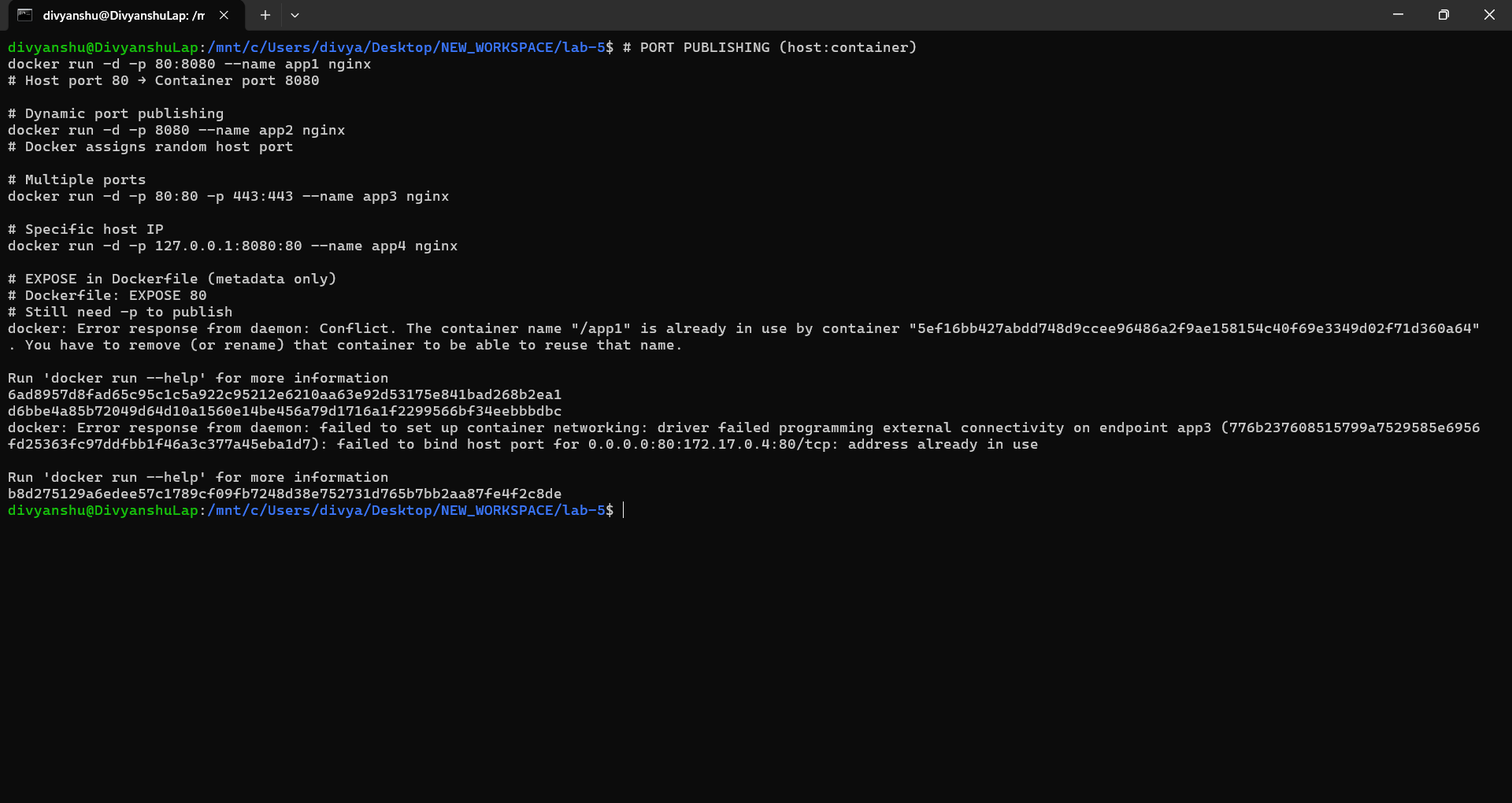
📸 Screenshot – port publishing examples:
Key Takeaways
- Volumes persist data beyond container lifecycle
- Environment variables configure containers dynamically
- Monitoring commands help debug and optimize containers
- Networks enable secure container communication
- Always use named volumes for production data
- Custom networks provide better isolation and DNS resolution
- Monitor resource usage to prevent performance issues
- Use
.envfiles for sensitive configuration